Thursday, May 31, 2012

Lync Dialing Rule Optimizer Gets Optimized

It was recently brought to my attention that some of the normalization rules created by the Lync Dialing Rule Optimizer in certain cases were not being used by the Lync client.  Specifically, the issue only arises if you select the option for the Optimizer to create 7-digit local dialing rules (only available for North America dialing rules).  The 7-digit rules are simply never used.  If you enter a 7-digit number that should be normalized to a 11-digit E.164 North American phone number, it doesn't happen.  Interestingly, if you use the Lync Voice Routing Test Case applet in the Lync Control Panel, you'll see that it normalizes just fine.

I did some testing of my own, and found out that the first part of the 7-digit rules were causing the Lync client to ignore the entire rule.  The first part of each 7-digit normalization rule is this cryptic piece of regex:
(?=^\d{7}$)  
This bit of regex says that whatever number is entered has to be a total of 7 digits long. The rest of the regular expression dictates the allowable first 2 or 3 digits for that particular area code.  At the time, this was the only way I could think of to ensure the total number of digits entered was exactly 7.

I put the question to Microsoft, who acknowledged that the server and the client can use different criteria for evaluating the validity of regular expressions.  It may be fixed in a future patch, but rather than waiting, I went about figuring out how to ensure 7-digit numbers without that bit of cryptic regex at the beginning.

After a good amount of research, work, and testing, I was able to figure out a way to ensure 7 digits in a much simpler way.  At the same time, I got a bit of regex schooling by Dan Berry of Acrodex. He told me I had way too many brackets in my regular expressions, so with his prompting, I was able to reduce the number of brackets by quite a bit.  He also gave me some other ideas for reducing the length and complexity of my regular expressions. 

The end result is a much shorter and more robust set of regular expressions for all the North American local dialing rules.  For example, one ruleset for Toronto, ON used to be 820 characters long.  With the new optimizations, the character count is down to 621.  This reduction can result in fewer rules, especially in larger cities. 

If you've previously used the Optimizer to create your rulesets for 7-digit dialing, I recommend you apply the updated rules.  If you subscribe to the monthly email rule update, then you'll get the updated ruleset starting next month.  If you come across any issues with the new rules, please let me know.

Thursday, May 3, 2012

Holiday Sets for Lync Response Groups

If you use Lync Response Groups, you have probably noticed the lack of any built-in holiday definitions for any country. Setting these up yourself is a labour intensive and very boring process using Powershell. I figure I'd take the time to publish the commands necessary to setup the default holidays for both US and Canada.

First, copy and paste the holiday definitions into the Lync Management Shell as shown below.  If the dates and/or actual holidays are incorrect for your site, go ahead and change them.

2016 Holidays


Then run this Powershell command to create the holiday set. Replace YOURPOOLFQDNHERE with the actual name of the Standard or Enterprise Edition pool you want to create the holiday set. If your company has different holidays (ie Banks/government in Canada get Easter Monday off), add them to the holiday list (ie $EastMon)

For US
New-CsRgsHolidaySet -Parent "ApplicationServer:YOURPOOLFQDNHERE" -Name "2016 US Holidays" -HolidayList ($NewYear, $MLK, $Presidents, $GoodFri, $Memorial, $USDay, $Labour, $Columbus, $Veterans, $US_Thanks, $Christmas)

For Canada
New-CsRgsHolidaySet -Parent "ApplicationServer:YOURPOOLFQDNHERE" -Name "2016 CA Holidays" -HolidayList ($NewYear, $Fam, $GoodFri, $Victoria, $CADay, $Civic, $Labour, $CA_Thanks, $Christmas, $Boxing)

2017 Holidays


Then run this Powershell command to create the holiday set. Replace YOURPOOLFQDNHERE with the actual name of the Standard or Enterprise Edition pool you want to create the holiday set. If your company has different holidays (ie Banks/government in Canada get Easter Monday off), add them to the holiday list (ie $EastMon)

For US
New-CsRgsHolidaySet -Parent "ApplicationServer:YOURPOOLFQDNHERE" -Name "2017 US Holidays" -HolidayList ($NewYear, $MLK, $Presidents, $GoodFri, $Memorial, $USDay, $Labour, $Columbus, $Veterans, $US_Thanks, $Christmas)

For Canada
New-CsRgsHolidaySet -Parent "ApplicationServer:YOURPOOLFQDNHERE" -Name "2017 CA Holidays" -HolidayList ($NewYear, $Fam, $GoodFri, $Victoria, $CADay, $Civic, $Labour, $CA_Thanks, $Christmas, $Boxing)

Enjoy!


Friday, April 27, 2012

Inbound Number Normalization Bug in Lync (FIXED)

I came across an issue recently where a North American company had deployed Enterprise Voice using the Lync Dialing Rule Optimizer.  Outbound calling would work fine, but inbound calls would fail with a busy signal.  I was testing against a number that was supposed to route to an Exchange auto-attendant.

I ran a trace using the Snooper tool and found a big glaring red error staring at me:
404 - No matching rule has been found in the dial plan for the called number. 
The detailed error looked like this:
Direction: outgoing;source="local"
Peer: lyncpool.contoso.com:58964
Message-Type: response
Start-Line: SIP/2.0 404 No matching rule has been found in the dial plan for the called number.
From: "604xxxxxxx";epid=5A81C7C2F0;tag=b356e0ebc3
To: ;tag=FCA83E847F99452AC4A563DB1552D6C4
CSeq: 2389 INVITE
Call-ID: 9d03fadf-282b-461b-912b-fbefe95a111b
ms-application-via: LYNCMON.contoso.com_LyncMonitoring;ms-server=LYNCFE.contoso.com;ms-pool=lyncfepool.contoso.com;ms-application=51FB453D-5B9F-45df-83B4-ADD1F7E604A8
Via: SIP/2.0/TLS 10.0.5.10:58964;branch=z9hG4bK71da34d1;ms-received-port=58964;ms-received-cid=18FC00
ms-diagnostics: 14010;reason="Unable to find an exact match in the rules set";source="LYNCFE.contoso.com";CalledNumber="4165551111";ProfileName="HeadOffice";appName="TranslationService"
Server: TranslationService/4.0.0.0
The inbound phone number was coming in as 10-digits, and excluded the North American country code 1 (which isn't unusual for a lot of phone providers).  I knew the normalization rules were working properly for outbound calls, but I couldn't figure out why inbound was failing.

I zeroed in on my NA-National rule.  The rule is formatted as follows:
^1?([2-9]\d\d[2-9]\d{6})$  ----NormalizeTo----> +1$1
This rule will accept any 10-digit valid North American formatted telephone number OR any valid 11-digit North American formatted telephone number starting with a 1.  Users in many areas tend to use 10-digits and exclude the leading 1 when dialing phone numbers, or they may use the full 11-digit proper format. The NA-National rule deals with both these cases by starting the rule with 1?.  When a question mark is present in a regular expression, it means that the preceding element is optional.  So, in our case, the NA-National rule will match both 10-digit and 11-digit North American numbers.

Unfortunately, there seems to be a bug in earlier versions of Lync Server 2010 (prior to the March 2012 update from what I can tell) that results in inbound numbers failing to normalize against a rule that includes a question mark.  When I removed the 1? from the rule, inbound calls worked as expected.

Thankfully, it appears that someone at MS has already caught this and fixed it somewhere between the November 2011 Lync Server update and the March 2012 update.  I didn't try to figure out which update fixed it, but I knew it was broken on a server running the November 2011 updates, and was fixed with the March 2012 update.

If you keep up-to-date with your Lync server patches, you won't come across this bug.  So, make sure you have the latest Lync Server updates applied before running the Optimizer for North American deployments.

Friday, April 20, 2012

Resetting Lync CMS Replication

The Central Management Store (CMS) stores a copy of the entire Lync topology for your deployment.  Every server has a copy of the CMS, but there can be only one master.  Each Lync server downloads a copy of the CMS from this master at regular intervals.  By default, the first Lync server you deploy is designated the master CMS.  However, there may be cases where you have to move the master CMS to another server.  This can be done relatively easily, assuming you follow the documentation properly.

The CMS replication process uses a local file share to copy updates between servers.  The share is called \\servername\xds-replica.  Every server has this share, including the CMS master.  The share is typically located in the root of the C: drive in the folder C:\RtcReplicaRoot\xds-replica.  If you installed Lync on another drive, this folder will be in the root of that drive.  

Sometimes, you may find that CMS replication is not working on a specific server.  You can check the CMS replication status by running the command Get-CsManagementStoreReplicationStatus. If all is well, every server's UpToDate status will be True.  If a server's status is False, try to force replication by running Invoke-CsManagementStoreReplication -ReplicaFqdn servername.  Wait a few minutes to see if its status changes.  If not, then look in the Event Log for both the failed replica and the CMS master for clues as to what is wrong.

If you can't find any reason for the failed replication, I've found that deleting the xds-replica folder on the failed replica and recreating it seems to reset things and solve the problem.  Unfortunately, even full Lync administrators do not have permissions to view the contents of the xds-replica folder (likely to prevent people like me from making a mess of things).

To "reset" the xds-replica to installation default follow these steps:
  1. Stop the following services used for CMS replication:
  • Lync Server File Transfer Agent
  • Lync Server Replica Replicator Agent (courtesy of the Department of Redundancy Department)
  1. Take ownership of the C:\RtcReplicaRoot\xds-replica folder, using the below picture as a guide.  Be warned, that once you start this procedure, you're committed to following through.  When you take ownership of the folder, you will wipe out the required permissions Lync needs to replicate the CMS and remove the share.

  1. Once you take ownership, delete the entire xds-replica folder under C:\RtcReplicaRoot.  
  2. Go to Control Panel - Programs and Features, select Microsoft Lync Server 2010, Core Components and select Repair.  This will create a new xds-replica folder/share and set the proper permissions.
  3. Go back to the Services snap-in and restart the two services.  The Replicator service may have been set to Disabled by the repair process.  Just set it to Automatic before starting it.
  4. Run Invoke-CsManagementStoreReplication -ReplicaFqdn servername and after a few minutes you should see the CMS replication status for the server change to True.
This procedure worked like a charm for me on a few occasions.  Let me know if it doesn't work for you.

Thursday, March 1, 2012

Localized Dialing Rules in the Lync Optimizer

I'm always looking for input from the community about things they'd like to see in the Lync Dialing Rule Optimizer.  I met Pat Richard at the MVP Summit this week and he needed help in the following scenario:

He has a customer who has a centralized Lync deployment located in the United States. There are several small offices located in other countries who connect to the US Lync server and use it for Enterprise Voice.  He wanted the users in the small offices to be able to dial phone numbers as if they were logged into a local Lync server.

For example, a UK user wants to be able to dial local UK numbers by dialing 6 or 7 digits. They dial national numbers by prepending a 0.  They know they have to prepend 00 for international calls.  They don't want to have to dial 01144xxxxxxxx for what they perceive to be a local call.

After some thought, I've updated the Optimizer to be able to handle this situation.  If you want to provide localized dialing rules for different countries, just do the following:
  1. Start with a clean Enterprise Voice slate
  2. Run the Optimizer against your Lync site using the generated script appropriate for your country, which will generate the necessary dialing rules for the country where your Lync server resides.
  3. Run the Optimizer for each country you want to create localized dialing rules and apply the generated script against your central Lync site.
By default, the rulesets for all countries use the official language for that country.  If you want the Optimizer to use English for all rulesets, then click on Click for English-Only Version, on the top-left corner of the page (or go directly to http://ucdialplans.com/english.htm).

When you run the Optimizer script for the first time, it will create a site-level dial plan with normalization rules for the desired country.  When you run the Optimizer script additional times, using scripts generated for different countries, it will detect the existence of a site-level dial plan and will create a user-level dial plan with normalization rules appropriate for that country.

Assign the user-level dial plan to the appropriate users and they will be able to dial phone numbers as they are accustomed to.  Continuing the previous example, US users will dial local and national numbers using either 10 or 11 digits, and international calls starting with 011.  UK users will dial local numbers using 7+ digits, national numbers starting with a 0, and international numbers with 00.  The UK users won't be aware that when they dial a 7 digit local number, it actually gets dialed out from the US Lync server as 01144xxxxxxx.  

Again, thanks to Pat Richard for the feedback and the suggestion, and for being the first person to actually give me a Paypal donation!

Thursday, February 23, 2012

Lync Mobile for Android Updated!

When the full suite of Lync mobile clients first came out, the Android experience was less than thrilling.  One key feature missing was the ability to use the mobile client to make the Lync server call your mobile phone and then connect you to the person you are calling (call-via-work).  All the other mobile clients had that feature, and the reason given was that it was difficult to program in Android's fragmented OS space.  Fair enough, but it certainly wasn't a barrier to the hundreds of thousands of other apps that are available for Android.

It seems as though someone at MS finally got the message and they've just released a Lync Mobile update for Android in the Market.  When I was at the Lync 15 Airlift last week, they said there would be an update "in a few months".  Happily, they should have said "a few days".  Wish this were the way for all upcoming MS products.  The details for the update are as follows:


What's in this version:
  1. Enabled call-via-work – allowing Enterprise Voice enabled users to make and receive calls using your Enterprise Voice (Lync ID) number only. Connect with others using a single identity.
  2. Added user controls for adjusting the sound/vibration for incoming notifications
  3. Improved the Lync status icon : know if you can receive IM messages
  4. Enabled copy of IM text to the clipboard
  5. Multiple bug fixes

Of course, I installed the update and had a poke around.  Right off the bat, Lync Mobile asked me to verify my mobile number to be used for Lync to phone me back when using Call-via-Work.  Immediately, it seemed as though the client was more responsive than before. This could just be wishful thinking, but it did seem snappier.

The My info screen now gives the ability to change your call forwarding settings, in addition to the usual ability to change my status from Available to Busy/Away etc.

Clicking on Call forwarding takes you to a screen where you can edit your settings.  Any changes you make here are immediately reflected in your Lync desktop client.

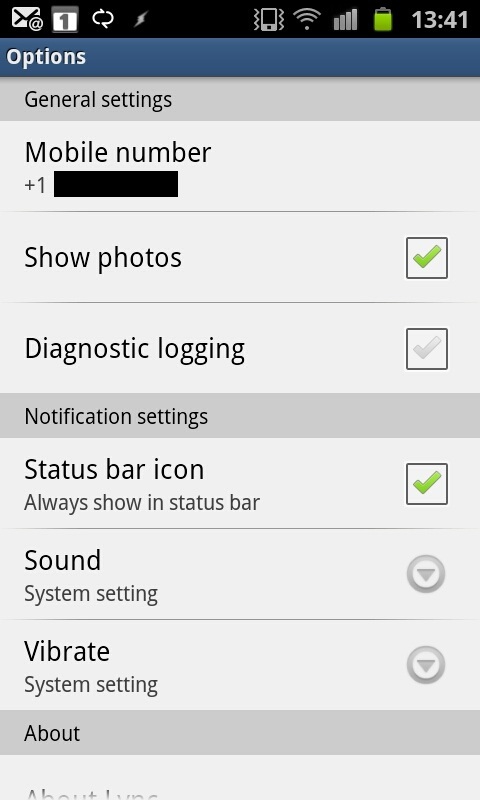
The Options screen has new options for changing sound and vibration settings.  When you select those options, you are able to change it to System settings or Never.


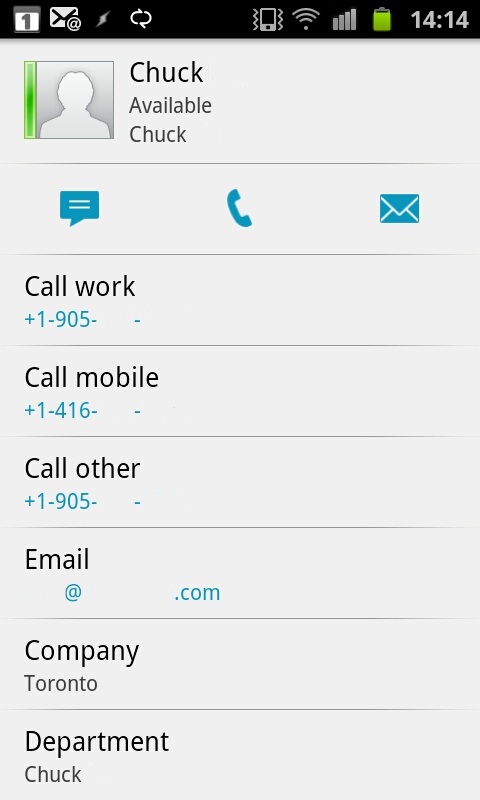
The Contacts screen looks the same as before.  Status updates did seem quicker than before, so maybe that was part of the bug fixes. Clicking on a user brings up the same screen.  No changes to the UI were noted here.


Before the update, when you clicked a phone number, it would just use your mobile phone to make the call. There was no integration with Lync.  Now, when you make a call, Lync will notify you to answer the next incoming call.

The next call will appear to be coming from your office phone number, which you should recognize.  As soon as you pick up the call, you'll hear it ringing the other end.  That user will also see your office phone number.  This effectively hides your mobile number from other users and will also be useful in situations where incoming mobile calls are free or where a call would be cheaper when being made through the Lync server PSTN connection.

There is a new screen called Keypad.  From here, you can dial a number directly.  As with the previous example, the Lync server will call your mobile number and then connect you to the number.  One thing I noticed is that the normal normalization rules don't seem to kick in. So, I have to dial the full 11-digits instead of 10-digits like I normally do (Lync adds the 1 for me).


The most welcome addition for me was the ability to do one-click meeting joins from my Android phone.  Before the update, I would have to manually enter the conference ID info, which would mean memorizing or writing down the confID and then entering it.  Tough to do when you're trying to join a call from a car.  Now, you can just click the meeting invite from your email, and it will call you and connect you to the meeting seamlessly.  Even better, when I tested this feature while I was already joined to a meeting via Lync on my desktop, it dropped the desktop audio and seamlessly joined me via my mobile.  So, if you have to leave, you can transfer to your mobile without missing a beat.  Very slick and impressive!

The notification icon has also been updated to be more informative.  While Lync is running and actively connected, you'll see the familiar Lync icon in your notification bar.  When Lync is disconnected, the icon will show a little X (as highlighted in red below).


Since there isn't a Lync push notification service for Android, you won't get conversation updates when disconnected.  However, if your phone works like mine (using JuiceDefender), the phone will shut off all network connectivity when not being actively used, but will periodically do a check. At that point, you will get any queued notifications. The user at the other end might get a failed delivery notification, so this isn't a very clean way to operate.

Even with the downsides, these updates are an extremely welcome addition to the Android Lync client.  This brings Lync for Android up to near-feature parity with the other mobile clients.  This Android fan is extremely happy!

Wednesday, February 22, 2012

Re-routing Incoming Lync Calls to AutoAttendant Using MSPL Scripting

Many companies assign extensions to their users rather than dedicating a full external phone number.  In companies with thousands of users, this is often the only option, plus it can save significant amounts of money.  If you've followed my Enterprise Voice Best Practices for extensions, then you know that I recommend you assign phone numbers to Lync Enterprise Voice users using the main office number as the base followed by the extension, using the format tel:<OfficeNumberinE164Format>;ext=<Extension>.  For example, if your main office number is 15553334444, and your extension is 222, then your Tel URI would be tel:+15553334444;ext=222.  You then create a normalization rule that takes the main office number and routes it to an Exchange autoattendant at an unused extension, such as tel:+15553334444;ext=999.  When someone calls the main office number, the phone call will be routed to the Exchange autoattendant where they can enter the extension of the user they wish to reach.

This works fine in many deployments, but in situations where the incoming phone number is already formatted in E.164 format (as with many SIP providers), it breaks down.  When Lync sees a number that starts with a +, it assumes the number is normalized properly and does not apply normalization rules, no matter how hard you try.  Users get a busy signal and if you do a log trace, you'll see the error 485 Ambiguous.  Lync sees many users with the same base phone number, and doesn't know where to send the call.

In many of those cases, you can either set your PSTN gateway (if you are using one) to not send the + to Lync, or you can ask your SIP provider to drop the +.  If neither of those options are available, then you can employ MSPL scripting to re-route the incoming call to the appropriate autoattendant.

MSPL scripts are simple text-based programs that can do custom message routing and filtering in Lync.  They can be very powerful, if you know how to create them.  Now, having exactly zero experience with MSPL scripting, I turned to the only way I know how to program:  Google/Bing for examples.  Thanks to some excellent blog posts by Michael Greenlee (which made me hyperventilate because most of it was totally incomprehensible to me) and a terrific example by Lasse Wedø (where he did the bulk of the work for me), I was able to figure out how to make this work in my specific example.

First, copy the contents of the below window into Notepad on a server that is running the Mediation Server role.

Do a search-and-replace for contoso.com and use your public domain name instead.

Then do another search-and-replace for 15552229999 and use your main office number instead.

Finally, do a search-and-replace for Main_AA@contoso.com and replace it with the SIP URI of your Exchange autoattendant or response group.  You can determine the SIP URI by running the OcsUmUtil.exe program (located in C:\Program Files\Common Files\Microsoft Lync Server 2010\Support).  This program is used to create the necessary contact objects to connect Lync to Exchange UM.  Once you click Load Data, make note of the SIP URI for the appropriate AA, and do a search-and-replace for Main_AA@contoso.com in the script using the information you found from OcsUmUtil.

Then save the script on your mediation server/front-end in a folder like C:\MSPLScripts, calling it ReroutePilotNumtoAA.am.  If you have multiple servers in the pool, copy the script to each server.

Now, open Lync Management Shell and type the following (make sure you replace contoso.com with your public domain name):
New-CsServerApplication -Name ReroutePilotNumtoAA -Parent Service:Registrar:
<lyncpoolFQDN> -Uri http://www.contoso.com/ReroutePilotNumtoAA -Enabled $TRUE -Critical $FALSE -ScriptName c:\MSPLScripts\ReroutePilotNumtoAA.am -Priority 2
If all goes well, you should see a few events in the Lync Server Event Viewer like the following:

Log Name:      Lync Server
Source:        LS Script-Only Applications
Event ID:      30803
Description: Loading application - 'c:\MSPLScripts\ReroutePilotNumtoAA.am'

Log Name:      Lync Server
Source:        LS Applications Module
Event ID:      30208
Description: Lync Server application has successfully registered.
Application Uri 'http://www.contoso.com/ReroutePilotNumtoAA'
Open Lync Control Panel and go to Topology - Server Application and you should see the new script between TranslationService and UserServices.

If the script doesn't work you will see the error logged in the Event Viewer.  If so, click Action and Disable Application.  After a few minutes, you should see an event saying the script was disabled.  Make any necessary fixes and re-enable.  It will take a few minutes to restart.  Once you get a clean start, try calling the main office number.  You should be directed to the chosen Exchange autoattendant.

Every time the script runs, it will log a warning event saying that the number was forwarded to the autoattendant.  If you don't want to see this event, comment the line that starts with Log("Event" with a //.

What is happening behind the scenes is that the script is looking for an INVITE for the main office number.  If it sees that, it will respond to the system making the call with a 302 Moved Temporarily.  This tells the system to forward the call to the new destination.

I recommend that you thoroughly document the procedure for future Lync administrators.  If you hand off Lync administration to someone else, it will be very difficult to determine that a script is being used to re-route the office number.  It doesn't make itself known when doing a typical log trace.  If you make a call to the office number, the trace will only show the phone call is going to the AA.  It won't show the script making the forward.

Also, note that this procedure can be used to forward calls to ANY SIP URI, not just an Exchange autoattendant.  It can be an autoattendant, a response group or an individual user.

This is my first foray into MSPL scripting.  If you notice any errors, please let me know.

For more funtastic MSPL examples, check out VOIPNorm's blog.


Tuesday, February 7, 2012

Hardware Load Balancers in Lync

Over the past while, I've come across several Enterprise Edition Lync deployments done by other companies that utilized hardware load balancers for all Lync services.  In every case, the reason given for using the hardware load balancers was "so we could have high-availability".  They were shocked to find out that hardware load balancing all Lync services is actually not recommended in a wide variety of scenarios and they could have saved themselves a lot of time and money.

When I design a highly-available Lync deployment, I ask four questions whose answers determine where hardware load balancers are required:
  1. Will the majority of internal clients be running Lync?
  2. Will the majority of external clients be running Lync?
  3. Do you require high-availability when federating with companies running OCS 2007 R2 or older, or MSN/Yahoo!/AOL/GoogleTalk/Jabber?
  4. Do your external users need to play messages on their phone during a failover?
If the answer to #1 is "No", then I recommend against using hardware load balancing (HLB) for all internal Lync front-end pools.  If the answer to #2, #3 and #4 are also "No", then I recommend against using HLB for edge servers as well.

Before I go on, I should stress that HLBs are still required for load balancing HTTP/HTTPS traffic to the front-end servers.  Since web connections are session based, they are not suitable for DNS load balancing.  So, for your web services (which includes address book downloads, meeting content and meet/dialin URLs), you will still need a simple HLB solution, which can be provided by either hardware or even a dedicated software-based load balancer (but don't use Windows NLB, its not supported)

Using hardware load balancers in Lync can be a costly endeavour for many reasons:

  • For a full HLB solution for a single Lync site with edge services, you would need an HLB for the front-end pool, an HLB for the internal interfaces on your edge pools and an HLB for the external interfaces on your edge pool.  That's 3 HLBs.
  • Many HLBs are not well suited to real-time communication.  HLBs that support real-time media are much more expensive than one used only for web traffic balancing.  
  • Configuring the load balancers to work with Lync is much more complicated and extends the implementation time. It can also complicate troubleshooting connectivity issues. 
  • Putting additional hardware between your users and the servers also introduces additional network latency, which is something you want to minimize where possible.  
  • Finally, the HLBs themselves can be a single point of failure, unless you deploy multiple nodes.
Lync can use DNS load balancing to provide high availability.  That term is misleading, because it implies that  DNS is responsible for load balancing, which is not true (or possible, since you can only do DNS round-robin in most cases).  DNS is only used to present the initial list of available front-end or edge servers (depending on if the user is internal or external).  Once the Lync client successfully connects to Lync, it caches the IP address of each server in the pool.  The user will preferably connect to the same server at each login (calculated using an algorithm described here), but if that server is unavailable, the client will automatically and seamlessly connect to another server in the pool.  The same is also true for federated connections from other companies, as long as they are using Lync for their edge servers.   

For legacy connections or 3rd party IM provider connections to a DNS load balanced Lync pool, the clients/edge server will only connect to the first IP address that is returned from a DNS lookup.  Should that server go down, they will not failover to an alternate server.  The same is true for external users who try to listen to Exchange-based voicemail messages during a failover.  If legacy/3rd party connections or external access to voicemail (and remember that voicemail messages are always accessible via Outlook) are important, then this is the ONLY reason I would deploy HLB on your edge servers.  In most cases, the company accepts the reduced potential for legacy high-availability in return for a simpler, cheaper and more reliable solution.

So before you go and drop a ton of money on hardware load balancers, make sure you understand the built-in high-availability capabilities in Lync first, so you can make an informed decision.

For more information on DNS load balancing in Lync, check out these links:
Lync DNS Load Balancing on Technet
Lync DNS Load Balancing on NextHop

Friday, January 13, 2012

Going to MVP Summit

I got accepted into the Microsoft MVP program for Lync a few weeks ago, and have just booked passage to my very first MVP Summit in Seattle the week of February 27 to March 2, 2012.

Since I have to keep up with the Hoff persona, you can expect to find me driving up to the beach in my '80's black Pontiac Trans-Am, stripping down to some red shorts and running down the beach in slow-motion.  My chest hair will keep me warm in Seattle's February climate.

If you're going to be at the summit, I'm sure I'll get the chance to meet you!  See you there.


Friday, January 6, 2012

Lync Edge Server Static Routes

If you're following the Technet articles on how to setup your edge server, you will eventually get to the point where you have to setup your NICs on your edge server.  According to the Set Up Network Interfaces for Edge Servers page:, you should set the default gateway on the external interface, but not the internal. The guide then helpfully tells you to....
Create persistent static routes on the internal interface to all internal networks where clients, Lync Server 2010, and Exchange Unified Messaging (UM) servers reside.
If you're not a Windows networking expert, this might stump you a bit.  Doing some searches might help, but here's a simple way to ensure that all internal networks are covered, even if you aren't aware of exactly which ones are in use.  This can easily happen if you're a consultant doing a Lync deployment for a large, multi-site company.

There are 3 well-known IP subnets that are reserved for internal use.  Any networking person can tell you what they are, and should be using these for their internal corporate network.  If not, then I would recommend running away.  The 3 well-known subnets are 10.0.0.0/8, 172.16.0.0/12 and 192.168.0.0/16.

I typically add static routes for all 3 subnets even if they aren't all in use.  This will future-proof your deployment  in case the company adds or changes their subnetting scheme.  To add these static routes on the internal interface of your edge server, do the following:
  1. Using the Network Connections interface, make sure your NICs have descriptive names that make sense (Ie. Internal and External)
  2. Open a command prompt in Administrative Mode on the edge server.
  3. Make sure you know what the internal default gateway should be.  In this example, we will use 192.168.100.1
  4. Type the following commands in the command window:
netsh interface ipv4 add route 10.0.0.0/8 "Internal" 192.168.100.1
netsh interface ipv4 add route 172.16.0.0/12 "Internal" 192.168.100.1
netsh interface ipv4 add route 192.168.0.0/16 "Internal" 192.168.100.1
When you do a netsh interface ipv4 show route, you should see the new routes show up at the bottom of the list.  If you make a mistake, you can delete a route by using the same command above, and replace add with delete.  Now,  your Lync edge server should be able to route to any internal address, both now and in the future.

UPDATE:  Apparently, I'm part Amish, and I was using ROUTE ADD instead of the updated netsh commands shown above.  Thanks to @twharrington on Twitter for pointing out the error to this ol' timer.  I'M DOIN' IT OLD SKOOL!