Showing posts with label telephony. Show all posts

Monday, February 3, 2020

Undocumented behaviour with dialplans on MS Teams

Who am I talking to? Eartha Kitt? Sorry, wrong number. I was trying to call my car.
I've been spending a lot of time recently messing around with MS Teams dialplans thanks to the recent release of SBC-specific translation rules. For the most part, the overall structure is the same as with Skype for Business on-prem. Some PowerShell commands are different, but most of what you already know is usable in Teams.

The biggest issue with Teams is that there hasn't been a UI for managing your Teams Enterprise Voice layout. This can be an issue if you are big into Direct Routing.  Thankfully, Microsoft recently made available what is hopefully the first round of UI enhancements to the Teams Admin Center. You can now create and manage dialplans in the UI. Microsoft has dutifully updated their documentation to help people navigate these new features.

However, there are some undocumented features that open up some interesting scenarios. Along with these are some extremely frustrating bugs that you should be aware of.

The Hidden Feature

In Skype for Business on-prem, there is a global dialplan that applies to users when there isn't an appropriate site or user-level dialplan. In the Teams documentation, the tenant Global dialplan serves a similar purpose, but there are additional features outside of what can be done on-prem. 

In Teams, Microsoft has published a series of very simple pre-defined dialplans called service country dialplans that apply to nearly every country in the world. You can see these by running Get-CsDialPlan and Get-CsVoiceNormalizationRule. They do the bare minimum, and don't do any real validation. These dialplans cannot be modified. 

The documentation goes on to say that you can define normalization rules in the tenant global dialplan or any number of tenant user dialplans. If a user tenant dialplan isn't assigned to a user, they will be assigned an effective dialplan of whatever is in the tenant global dialplan and the default service country dialplan for that user. Similarly, if a user is assigned to a tenant user dialplan, their effective dialplan will consist of the contents of the assigned tenant user dialplan along with the user's service country dialplan. The tenant dialplans have higher priority than the service country ones. 

The hidden feature is that if you have defined any normalization rules in the tenant global dialplan, those normalization rules will appear at the top of the list of any new tenant user dialplans created afterwards. This can be very useful in large organizations with many sites, but have a common set of extension dial rules. You simply have to define the rules once in the tenant global dialplan, and they will show up in every new tenant user dialplan created from that point forward. This applies to dialplans created in both PowerShell and the Teams Admin Center.

Unfortunately, there isn't a real link between the tenant global and tenant user dialplans. They are simply copies of the original. If you make a change to the tenant global dialplan, it won't be reflected in all your other dialplans. As with Skype for Business, you're still stuck with using PowerShell to manage bulk changes. Overall, it might make deploying new dialplans just a little bit simpler if you choose to take advantage of this undocumented feature.

The Bugs

Unfortunately, there are also a number of annoying bugs/oversights with the new UI. Some are cosmetic, but some will force you to re-create your dialplan if you accidentally encounter one.

Description Discrepancies

If you've used UCDialplans.com to create your dialplans, you may have noticed that I make extensive use of the Description field to let people know where the rules came along with a copyright notice. I even put in linebreaks to make it readable in the SfB Control Panel UI. These descriptions are rather lengthy and go well beyond 255 characters (sorry, not sorry).

Here are my grievances with the Description field in the MAIN dialplan UI:
  1. The Teams admin center dialplan UI doesn't respect the linebreaks and just renders a wall of text.
  2. The UI throws an error that you can only have up to 255 characters, when PowerShell allows a much higher number.
  3. The UI also throws errors about "invalid characters", such as !@#$%^*()=/\[]{}:;?<>+' Again, PowerShell has no issue with any of these characters.


What makes this even more odd, is that the UI for the individual normalization rules exhibits NONE of these issues. It renders the linebreaks properly, and doesn't complain when the description is longer than 255 characters and includes "special" characters.

The External Dialing Prefix Bug

This is a big bug, and am quite surprised it made it through QA. For a bit of background, you can configure Teams so that users can dial an external access prefix (like 9), before dialing an external number. For users coming from a legacy PBX, this is undoubtedly a boon and doesn't force them to retrain years of muscle memory. It also makes off-hook dialing more reliable. For an extended explanation of this feature, go waaay back to one of my posts from 2011 on the topic. I haven't tested it myself, but the details should still apply to Teams.

Most customers don't bother with this feature, and have been happily creating dialplans in Teams/Skype for Business Online for years via PowerShell without defining an external dialing prefix. However, if you create a new dialplan or edit an existing one in the UI, you will not be able to save your changes unless you set an external dialing prefix.

Also, this seems to have found itself into the PowerShell commands themselves, but not completely. You can create a new dialplan with New-CsTenantDialplan without an external dialing prefix, and you can make changes to an existing dialplan with Set-CsTenantDialplan, but if you try to remove an external dialing prefix via PowerShell by setting it to either $NULL or "", you will be denied.

As long as you don't set a prefix, you should be fine. Don't do what I did and set a prefix in the UI to see what happens, and expect to be able to remove it in PowerShell. This forced me to redo my entire dialplan from scratch. Thankfully, UCDialplans.com took care of that in a minute.

Spelling Mistakes

A minor quibble, but one that will force me to keep a close eye on (boo hoo me). The New/Get/Set-CsOnlinePSTNGateway command has options for setting inbound and outbound translation rules:

  • InboundPstnNumberTranslationRules
  • InboundTeamsNumberTranslationRules
  • OutboundPstnNumberTranslationRules
  • OutbundTeamsNumberTranslationRules

Do you see the problem?

Someone's spellcheck didn't work.

Conclusion


I'm trying to get this in front of the right people at Microsoft to get them to fix. Hopefully, this half of my post will have a limited shelf life. Have any of you experienced any of these issues or come across any others? Let me know in the comments.

Monday, March 12, 2018

The Evolution of the Skype Optimizer: From Locally-Run VBScript to Azure Web App

I was recently amazed when I realized the seeds of what is now the Skype Optimizer was created 10 YEARS AGO, back when Office Communications Server 2007 R2 was starting to make headway in the unified communications space.

The Beginning

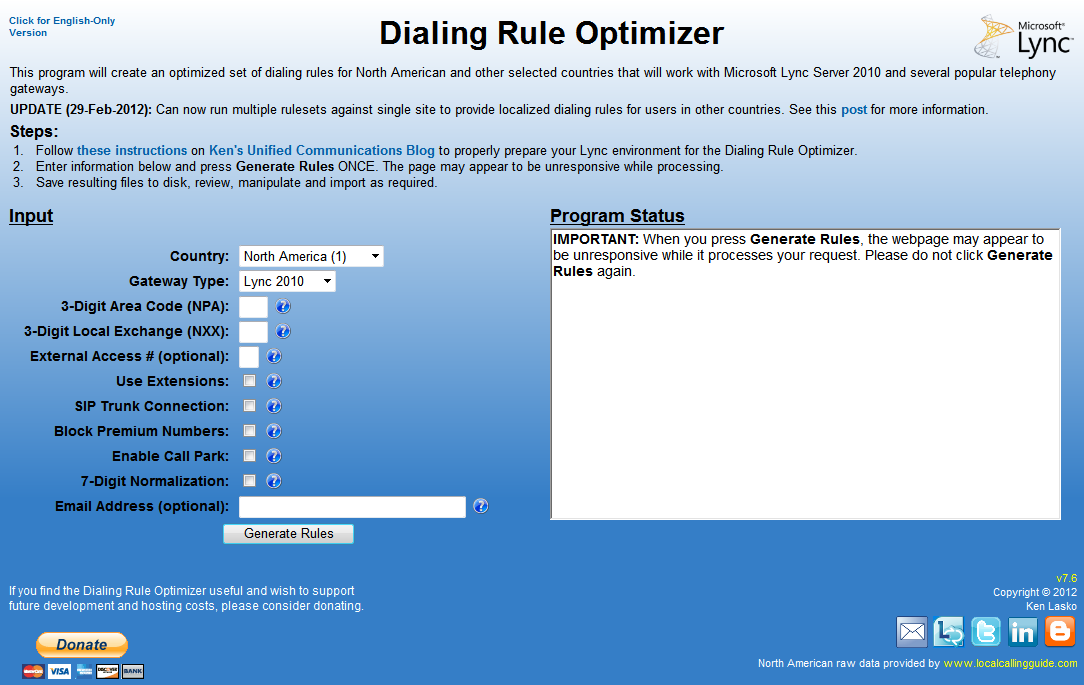
The genesis of the program grew out of a need to know when to strip the +1 from a North American local number and when not to. Rather than rehash the creation myth, you can read all about it from one of my earliest blog posts where I announced the Dialing Rule Optimizer to the world (at that time, the 30-odd subscribers to my blog).

The very first version was a straight VBScript that I had to manually input the proper variables and run it by hand. Rather than give the code away, I told people to email me the phone numbers they wanted to get optimized dial rules for.  I would run the script and send them the results, which was a simple text file with either a bunch of regex, or text formatted to be applied to AudioCodes or Dialogic gateways.  Word got around within Microsoft, and I found myself busy sending stuff to various Microsoft consultants.

When Lync 2010 came around, which was in its earliest days known as Communications Server "14", I added the capability to create simple routing rules that consisted of a few lines of PowerShell code.  I also wrapped the code around a simple UI in something called an HTA (short for HTML application).  It made generating rulesets easier for me, but it was still something that I was running from my local machine.
The earliest known copy of the original Dialing Rule Optimizer. I obtained this from the Smithsonian Museum. The text-only v1.0 has been lost to the sands of time.
I soon figured out that it would be relatively straightforward to move the HTA into an actual web page.  I put the code on a web server hosted by the company I was working for at the time and opened up the tool to the entire world. I actually put this code on the computer that was running our OCS 2007 R2 server!

The very first web-based iteration of the Dialing Rule Optimizer. Note the Communications Server "14" logo on the top-right.

Once Communications Server "14" became Lync 2010, I realized that I could go beyond simple optimized route creation, and modified the Optimizer to create everything required for a simple Enterprise Voice setup for US and Canada deployments.

Shortly after, I realized that I could do the same for other countries as well. The Optimizer interface grew somewhat to accommodate the requirements for different countries.
Dramatic differences abound! Communications Server "14" has changed to "Microsoft Lync". Also, UK dial plans!
I slowly added other countries to the Optimizer. I also added other features such as extension dialing rules, least-cost/failover routing, among many others.

Over time, the back-end code base was starting to become difficult to support. I was using a series of XML files to deal with languages and country-specific dialrules, and the sheer number of them was becoming cumbersome to manage.  I decided to move everything from the company-hosted platform to Amazon Web Services. I built a single Windows VM with SQL Express and ported the XML files to a database. It worked well, but AWS was starting to cost a fair bit to run for a free service. Donations were not keeping pace with costs.

I then discovered that Microsoft MVPs got a monthly allotment of funds in Azure. I immediately moved my infrastructure to Azure, where it ran mostly trouble-free for the next several years.

The Optimizer featureset grew and grew, but the interface was still as ugly as the day I first created it.  One person even suggested it looked like a GeoCities page. Hey, my argument was always that I was not (and am still not) a web developer.


The Modern Era

I decided to try to give the Optimizer a more modern look. I completely re-wrote the front-end code using Notepad++ as my trusty editor.  I replaced the clunky extension builder with a better Javascript framework that emulated an Excel spreadsheet, and made other significant under-the-hood improvements. After much trial and error, I was pleased to unveil the new look.

The website looked modern, clean and easy-to-use.  However, it bugged me that while the site was running in Azure, it was still just a single Windows VM with a local SQL Server instance. It was also costing most of my monthly Azure MVP credits with not a lot of headroom. I decided to try to make the Skype Optimizer simpler and cheaper to manage, figuring that there would probably come a day when I would not be a Microsoft MVP (the horror!!!) and I'd be expected to pay a monthly bill (Oh the humanity!!!).

My first step was to dump the local SQL and move to Azure SQL Database. First, I had to copy the gigabytes of data to my SQL instance.  I opted to use transactional replication, which would allow me to keep both my local and Azure-based SQL instances up-to-date while I tested things out.  It turned out to be ridiculously easy. I had to modernize my code a bit to allow it to still read/write data to Azure SQL, but this was pretty straightforward as well.

With that hurdle out of the way, I looked at a few different ways to further reduce my costs and administrative burden. 

Docker Containers

I'd heard about Docker containers and how it was an easy way to reduce the overall complexity and costs over a traditional virtual machine.  I installed Docker on my home machine and started messing around with it. I used the Image2Docker tool to make a copy of my Windows VM-based website and installed it locally.  I had to do quite a bit of modifications to my dockerfile to support some of the added features that Image2Docker didn't capture, but after a while, I managed to make the Skype Optimizer work in a Docker container. 

Moving my newly-created container to Azure wasn't too much work, but there was definitely a learning curve involved. It started up fine, and I pointed my DNS entries to the container and away we went!  However, all was not perfect:
  1. My container stopped working a few times over the span of a few weeks. Troubleshooting this proved to be nearly impossible due to the nature of Docker containers and how you lose the previous state every time you restart it. Either that or I just don't know how these things really work.
  2. Making code modifications wasn't simple either. I'd have to make the change in my local Docker image and publish that image to Azure. The startup process took 5-10 minutes, which was probably due to how I built my container.  I looked at ways to improve the startup time, but it was already eating up lots of my time.
  3. The costs to run the container wasn't much cheaper than a full VM
Because of those reasons, I decided that Docker containers weren't well-suited to my needs and I finally turned to....

Azure Web App

All the back-end code changes I made to the Optimizer to support both Azure SQL Database and Docker containers actually had an unexpected side benefit: it allowed me to easily move the Optimizer to Azure Web App, which is Azure's web hosting framework.

To make the process of managing this easier, I finally moved away from Notepad++ as a development environment and embraced Visual Studio. Visual Studio made it trivial to take my entire website and migrate it to Azure. I had a few challenges with making my code-signing certificate work, but in the end it all worked flawlessly. 

The Skype Optimizer has been running as an Azure Web App for several months now. Its extremely reliable, simple to manage, and about 3 times cheaper to run than the original Windows VM. 

The Future

So, there you have it. The entire history of the Skype Optimizer posted here for posterity. Where do things go from here? Well, with Microsoft Teams eventually taking over the Enterprise Voice role from Skype for Business, I may decide to look into what it would take to turn the Skype Optimizer into a Teams Direct Routing and Calling Plans management platform. 

Until then, I will continue to keep updating the Skype Optimizer to make sure Skype and Teams administrators worldwide have a single place to get accurate, up-to-date dialing rules for every country in the world.


Tuesday, August 23, 2016

Lync/S4B Client Can Normalize Numbers with Plus Sign?!?!?

One of my central tenets of number normalization in Lync/Skype for Business has always been:
"Lync/Skype for Business will not attempt to normalize a number that already has a plus sign at the beginning"
There are signs that this is no longer true, at least for customers running Skype for Business Server 2015 and the Skype for Business 2016 client (and even the Lync 2010 client). I was messing around with normalization rules last night and realized that my Skype for Business 2016 client (version 16.0.7030.1021 32-bit) WAS normalizing numbers that started with a plus sign.  I later validated this with a Lync 2010 client against the same Skype for Business 2016 server.  And a commenter below said he's pretty sure he did this with Lync Server 2013.  So this means that either it has ALWAYS worked this way and I never realized it, or its something relatively new on the server-side.

I should clarify here and state that the normalization rule in question was specifically constructed to include a plus sign in the normalization pattern (as highlighted below):
^\+?(?:011)?(1|7|2[07]|3[0-46]|39\d|4[013-9]|5[1-8]|6[0-6]|8[1246]|9[0-58]|2[1-689]\d|3[578]\d|42|5[09]\d|6[789]\d|8[035789]\d|9[679]\d)(?:0)?(\d{6,14})(\D+\d+)?$
This DOES NOT mean that the Skype for Business client will suddenly normalize all numbers that start with a plus. If your normalization rules do not include a plus sign, it will not normalize a number with a plus sign.

This has all sorts of ramifications, all of them positive. That means that dealing with improperly formatted click-to-dial numbers in Internet Explorer is much simpler.  We can now fix this with a simple normalization rule, instead of doing it in a trunk translation rule or route.


This also means that dialing contact phone numbers from Outlook can also be much more reliable, especially if an extension is entered.  Before, if a user entered a contact phone number with an extension in Outlook using the "Phone number builder", it would format the number like "+1 (212) 555-1212 x 345".  If you clicked this number, Lync would parse the "x" as a "9" and the number would come out in Lync like "+121255512129345" and would likely fail.

I have no idea how long this new behaviour has been available.  It works on a Skype for Business Server 2015 environment with both Skype for Business 2016 clients and Lync 2010 clients.  I don't have a Lync 2013 or older environment to test with.  I tried to see if this behaviour extended to server-side normalization scenarios with no luck. I tried to change the destination phone number on an incoming call that started with a plus sign.  It didn't work, which implies that this is a client-only thing. The MSPL workaround is still required.

If this is only new to me, then I apologize for wasting everybody's time.  I've incorporated my new findings into the Lync Optimizer (as you would expect), because it does allow for several dialing scenarios to work better than before.

If anybody has any information on this or can test other versions of Lync server/client, drop me a line.

UPDATE (2016-Aug-24): Updated to clarify that a normalization rule has to explicitly look for a plus sign for this to work. Original post implied that any valid, matching normalization rule would be applied to a number that had a plus sign on the front.  Also made changes based on further observations with older clients.

Wednesday, August 10, 2016

North American Call Authorization Tricks

Almost every country in the world has a dedicated country code assigned to it for telephony purposes (see countrycode.org for a full list). There is one very large exception to this rule and that is countries in North America (US and Canada) and a good portion of the Caribbean.  These countries all share the same country code of +1 and are collectively part of the North American Numbering Plan (NANP), which is managed by the North American Numbering Plan Association (NANPA).

A NANP number consists of the country code +1, a 3-digit area code, and a 7-digit subscriber number, often formatted like +1 (212) 222-3333.  You'll sometimes see the +1 omitted from the number on business cards and websites that don't think globally.

Dialing numbers in North America is quite different from most places in the world.  In the rest of the world, if you want to dial a long-distance or national number, you have to dial a national access code.  In a lot of countries, this number is 0.  However, in NANP countries, you have to dial 1 for long-distance/national numbers. That's right, you have to dial the actual NANP country code as the long-distance access code, which is unique among all other countries.  Incidentally, the international access code is 011 (in many other countries, its 00).
"Connect me with the German Chancellor immediately! I have an idea for a new album!"
If you want to dial Canada from the US, or the US from Canada, or any of the Caribbean countries in NANP, you don't dial the international access code 011, you just dial the number as you would any other long-distance number.  So, if I want to dial Toronto, Canada from Vancouver, Canada I would dial +1 416 555 1111.  If I wanted to dial New York City from Vancouver, I'd dial +1 212 555 1111.

It gets even better.  NANP area codes are allocated by a trio of over-caffeinated spider monkeys who press numbers on a giant keypad at random to assign a new area code (well, that's how it appears).  There is no logical separation between area codes between any of the countries.  For example, area code 646 is in New York, USA, 647 is in Ontario, Canada, and 649 is in the Turks & Caicos (Caribbean island nation). Click here for a current list of area code allocations in NANP.

These days, calls between the US and Canada are often priced identically to a domestic long-distance call.  But calls to the NANP Caribbean countries are usually priced much higher, akin to dialing some very remote international destinations.  Continuing the previous example, a US user that has signed up for Microsoft's Skype for Business Online PSTN Calling Plan can expect to pay $0.013 per minute  (just over 1 cent a minute) to call area code 647 in Ontario, but would end up paying $0.583 (almost 45x more expensive) to $0.741 per minute to call area code 649 in the Turks & Caicos.

Since it is nigh impossible for a regular person to distinguish a Caribbean country from US/Canada based solely on the area code, it is easy for people to accidentally incur high phone charges when calling these countries.
He had an Apple watch long before anybody else. True trendsetter, even if it took 30 years.
Skype for Business administrators often want to prevent certain users from dialing these Caribbean countries, and it can be easily done with some fancy routing rules.  Assuming you've already configured voice polices for national and international access, then you just have to modify the National level voice route to block Caribbean destinations.  You could do some research to determine the Caribbean area codes, and create your own regular expression to block them, but I figure I should do SOMETHING useful with this post and provide you with that information.

This Skype for Business route number pattern will block all Caribbean countries that are part of NANP, except for the US Virgin Islands and Puerto Rico (which are often not priced much differently than US numbers, when calling from the US):
\+1(?!(24[26]|26[48]|284|345|441|473|649|664|721|758|767|784|8[024]9|86[89]|876|900|976))[2-9]\d\d[2-9]\d{6}$
If you want to also block US Virgin Islands and Puerto Rico, then use this one:
^\+1(?!(24[26]|26[48]|284|34[05]|441|473|649|664|721|758|767|78[47]|8[024]9|86[89]|876|900|939|976))[2-9]\d\d[2-9]\d{6}$
You may note that I've also made sure to exclude premium area codes like 900 and 976.

To make sure that people assigned an International voice policy can dial those Caribbean countries, your international route should include a pattern for North American numbers and look something like this:
^\+((1(?!(900|976))[2-9]\d\d[2-9]\d{6})|([2-9]\d{6,14}))$
If you REALLY wanted to get draconian and block calls to Canada from the US, and vice versa, you could use the following rules:

Block Canadian and Caribbean calls:
^\+1(?!(900|976))(20[^04]|21[^1]|22[4589]|23[149]|24[08]|25[12346]|26[0279]|27[026]|30[^06]|31[^1]|32[0135]|33[^2358]|34[067]|35[12]|36[01]|38[056]|40[^03]|41[^168]|42[345]|43[0245]|44[023]|47[0589]|48[04]|50[^06]|51[^149]|53[0149]|54[01]|55[19]|56[12347]|57[01345]|58[056]|60[^04]|61[^13]|62[03689]|63[016]|64[16]|65[017]|66[01279]|67[018]|68[124]|70[^059]|71[^01]|72[0457]|73[1247]|74[037]|75[47]|76[02359]|77[^1678]|78[1567]|80[^079]|81[^19]|83[012]|84[3578]|85[^1235]|86[02345]|87[028]|90[^025]|91[^1]|92[0589]|93[16789]|94[0179]|95[12469]|97[^4567]|98[0459]|281|458|469|520|828)[2-9]\d{6}$
Block American and Caribbean calls:
^\+1(?!(900|976))(41[68]|43[178]|51[49]|58[17]|70[59]|78[02]|90[25]|204|226|236|249|250|289|306|343|365|403|450|506|548|579|604|613|639|647|778|807|819|825|867|873)[2-9]\d{6}$
The above rules are formatted slightly differently from the ones that block Caribbean countries.  The Caribbean rules show which area codes to BLOCK.  The other rules show which area codes to ALLOW.  Of course, I didn't roll these rules by hand, since there are tens of dozens of area codes allocated to each country, and do change from time to time.   I used the super handy-dandy Lync Optimizer.  As you might expect, these options are available in the Lync Optimizer via the "Treat as National" option (only shows for North American dial rules).  You can select one of the following options with regards to dialing other countries within NANP:
  1. In-Country Only - Treat all calls to NANP countries other than your own as international, even though users don't have to dial 011 to reach them. As such, users will have to be a member of a voice policy that allows international dialing.
  2. US/Canada - Treat calls to anywhere in US/Canada as national calls, excluding the Caribbean. To dial Caribbean countries, users will have to be a member of a voice policy that allows international dialing. Not available for Caribbean rulesets.
  3. US/Canada/Caribbean - Treats calls to anywhere in NANPA (US/Canada/Caribbean) as national calls (along with the potentially higher call costs).

If you are creating a ruleset for a Caribbean country that uses +1 as the country code, you won't be able to select US/Canada, since this would make dialing within that Caribbean country difficult.

Selecting the Simple Ruleset option prevents usage of this feature, and will default to US/Canada/Caribbean. You won't be able to control how people dial other NANP countries when there is only a single simple routing rule.

So, there you go.  A lesson in the finer details of dialing numbers in North America that the rest of the world might not be aware of. Try to contain your excitement.

Monday, July 18, 2016

Using the Lync Optimizer to Configure a Single Multi-Country SIP Trunk

As SIP trunking becomes more reliable and trusted, companies are taking advantage of the ability to consolidate standard PSTN phone lines from multiple office locations into a single SIP trunk.  Most of the larger SIP providers can provide phone numbers for multiple countries, allowing for even further consolidation of telephony resources.

Skype for Business is very well suited to this sort of consolidation.  Typically, larger companies deploy large centralized Enterprise Edition pools in a few central datacentres that serve offices spread across entire continents.  These centralized pools in turn connect to a SIP trunk over a trusted, secure connection.

As mentioned, these SIP trunks can provide phone numbers for multiple countries, and price those calls as if they originated from those countries.  So, if a company has a SIP trunk in London, UK, they can give out phone numbers to other countries.  For example, users could have Germany-based phone numbers served out of the London SIP trunk, and calls from those numbers would be priced as if they originated from Germany. If a German user placed a call to another German phone number, they would be charged as a local or national call, even though the SIP trunk may physically reside outside of Germany.  Conversely, if that same German user called a London phone number, the call would be charged as an international call.

Setting up Skype for Business dial plans and voice policies in this situation can get tricky, but fortunately I've come up with a very clean and easy to execute plan on how this can be accomplished using the Lync (Skype) Dialing Rule Optimizer.

Let's use an example of a company with a central Skype for Business deployment in London, UK with a single SIP trunk assigned to that location.  This company has offices in the following locations:
  • London, UK
  • Berlin, Germany
  • Paris, France
All user phone numbers for all three locations are hosted out of the London SIP trunk.

The company has the following requirements:
  • Users must be able to dial as they are accustomed to in their respective country
  • Must be able to limit dialing for certain groups to the local, national or international level for their respective country
Let's assume this is a greenfield deployment, and nothing has been done yet in terms of Enterprise Voice configuration outside of getting the London SIP trunk connected to Skype for Business.

The first thing to do is to generate rulesets for each of the three locations using the Dialing Rule Optimizer.

First, London:

Then Berlin:

Note that I selected the "Force English Rulenames", which I did just because I can't read German or French and would prefer English rule names and descriptions throughout my Skype for Business deployment.

And finally Paris...

The resulting .PS1 rulesets are then copied to one of the Skype for Business servers. 

First, the London ruleset is applied to the deployment, creating user-level dial plans and voice policies when prompted.  When complete, there will be a single London dial plan and 3 voice policies. All routes use the single SIP trunk (as you would expect, since its the only one available).
Dial Plan page after running London ruleset
Voice Policy page after running London ruleset

In this state, we can easily assign a UK dial plan and voice policies to UK users as appropriate.

Next, run the rulesets for Berlin and Paris.  This is done for multiple reasons. Firstly, it will create German and French dial plans, so users in those countries can dial numbers as they do in those countries.  Secondly, it will allow administrators to assign country-specific local, national and international policies.  Someone assigned to a German national policy will only be able to dial phone numbers in Germany and nowhere else, regardless of the physical location of the SIP trunk.

When running the rulesets, make sure NOT to select the option to use least-cost routing. Least-cost routing only works with multiple SIP trunks from different providers. With a single SIP trunk, as in this example, implementing least-cost routing adds unnecessary PSTN usages to voice policies that ultimately don't accomplish anything.  If we make a call from a German number to London using a London route, the call will still be billed as an international call from Germany, as the SIP provider will see the German number as the source and bill accordingly.

To make things easier and faster to run, I recommend the use of the multiple PowerShell command-line switches available with rulesets.  It makes applying multiple rulesets faster and less prone to errors.  For the rulesets in this example, I used the following switches (using the Paris ruleset as an example):
 .\FR-Paris-Lync.ps1 -SiteID 1 -DialPlanType user -LeastCostRouting:$FALSE -OverwriteSiteVoicePolicy:$FALSE -LocationBasedRouting:$FALSE -PSTNGateway gatewayname -MediationPool mediationpoolname
For a full listing of the available command-line options, use the command:
Get-Help .\FR-Paris-Lync.ps1 -Full

Once done, the dial plans and voice policies will look as below.
Dial Plan page after running Berlin and Paris rulesets

Voice Policy page after running Berlin and Paris rulesets

This might seem more complicated than absolutely necessary, and you would be right. You could certainly just use London-based rules for all locations, but it would limit your options severely.

Setting up things in this way will allow users to dial numbers exactly as they do at home, and also allows administrators very granular control over dialing capabilities.  Common area phones in Paris can be limited to local dialing in Paris.  First level helpdesk employees in Germany can be limited to dialing only German numbers.

This shows how easy it is to use the Dialing Rule Optimizer to quickly setup flexible dial plans and voice policies in even the largest voice deployments.  If you have any questions about this method, please leave a comment.


Wednesday, May 8, 2013

Viewing Extensions in the Lync Client

In companies that use extensions off the main number, I’ve always recommended they format their numbers using the main office number for the “base” and followed by the extension (ie. tel:+14165551111;ext=222 for North America, or tel:+4420555111;ext=222 for elsewhere).  In Active Directory, I’ve recommended they use the same type of format (ie. +1.416.555.1111 X222), and use the Company_Phone_Number_Normalization_Rules.txt to enforce the same formatting.

Background

For those unfamiliar with how Lync displays phone numbers, the Lync client will only display numbers it can parse from Active Directory.  It doesn't show the actual TelURI defined in the Lync Control panel, which is a good thing, because there are often additional settings applied there that administrators don't want to have appear in the address list.  The Company_Phone_Number_Normalization_Rules.txt file is helpful in re-formatting phone numbers in AD to the E.164 format we like to see in Lync.  For a good overview of the Company_Phone_Number_Normalization_Rules.txt, see Jeff Schertz's blog entry on the topic.

The Problem

I've found that when using the Lync 2010 client, North American phone numbers would always display with the typical North American formatting properly along with the extension when dialed, (ie. +1 (416) 555-1111 X222).  However, when applying similar rules to international numbers, the extension would never display.  It would show +4420555111 instead of +4420555111 X222.  The number would be dialed properly, but it would be confusing to the user, because the extension wouldn't appear.

Fast forward to Lync 2013 client, and the situation appeared even worse.  Even North American phone numbers with extensions wouldn't appear properly when dialled.  I assumed this was a client bug that was getting worse with each client revision.

The Solution...Sort of

Fellow Lync MVP Tom Pacyk of ConfusedAmused.com brought to my attention a little known (well, little known by me) feature added with the October 2012 update for the Lync 2010 client.  In short, the client update finally fixed the bug for international extensions, but with a catch....you had to first add a new client policy entry to your Lync client policy.  If only the global client policy is being used, the commands are:
$x = New-CsClientPolicyEntry -Name "ShowExtensionInFormattedDisplayString" -Value "True"
$y = Get-CsClientPolicy -Identity Global
$y.PolicyEntry.Add($x)
Set-CsClientPolicy -Instance $y

Since this policy setting was a part of the Lync 2010 client updates, it would be very easily missed by someone whose focus has changed to Lync 2013.  I can only assume the same settings are required in a pure Lync 2013 environment, although there is very little information on the topic.

If you're running Lync Server 2010, it appears as though you need at least the October 2012 Lync 2010 server updates for this to work.  I tried to apply this client policy entry to a client's deployment whose got Lync 2010 and 2013 in parallel, but the Lync 2010 environment is a bit out of date.  The policy entry showed up properly when I ran the following:
$y = Get-CsClientPolicy -Identity Global
$y.PolicyEntry
...but neither my Lync 2010 or 2013 clients would show extensions properly.  Applying the policy entry to a 2010/2013 server mix where the 2010 environment was up-to-date worked fine...at least for 2010 clients...mostly.

So, make sure your Lync 2010 infrastructure is up-to-date before attempting to apply this setting.

What's Still Not Working

I setup a few test users with extensions off a fictitious Toronto, Canada and London, UK main office number.  The Toronto user's office number in AD was set to +1.416.555.1111 X111, and the London user's number in AD was set to +44.20.444.2222 X999.  Both users were setup in Lync with their TelURI properly defined as tel:+14165551111;ext=111 and tel:+44204442222;ext=999 respectively.

A Company_Phone_Number_Normalization_Rules.txt file was placed in the ABFiles folder on the shared folder for the Lync server pool with the following rule to ensure Lync would be able to parse phone numbers  with extensions in Active Directory properly:
\+(\d{6,14})\D+(\d+)
+$1;ext=$2

When testing with the Lync 2010 client, North American numbers showed up properly in both the list view and the dialing view, as shown below:


However, international numbers did show numbers a bit differently between the views, using the ;ext= from the TelURI instead of the X:


Interestingly enough, the Lync 2013 client doesn't seem to fully honour the extension setting for either North American or international numbers.  The number shows up properly when hovering over the phone icon, but only shows the main number when dialing:

North America

United Kingdom

Needless to say, this can be very confusing to the average user.

This appears to be a bug introduced with the Lync 2013 client.  I've brought this up with the Lync product managers, and we should see a future patch that will address the issue for Lync 2013 clients.

UPDATE (10-July-2013): The July 2013 Update for Lync 2013 addresses the extension presentation for North American numbers, as shown below.

However, non-North American numbers with extensions still don't show up properly.  I've been told this should be in a separate fix coming later.

UPDATE (16-June-2014):  I didn't notice but at some point in the past year, a patch seemed to mostly fix non-North America number presentation during dialing.  The number shows the extension as part of the TelURI, but it really should show the display number. At least its consistent with how the Lync 2010 client formats things.

Friday, January 4, 2013

Blocking International Calls to Specific Countries in Lync

A question that often comes up in my travels is that Lync administrators want an easy way to allow users to dial internationally but exclude specific countries for some reason.

This is very easy to accomplish once you understand the ins and outs of regular expressions, and assuming you follow all my best practices regarding number normalization, and Enterprise Voice setup.  To summarize, every number a user enters in Lync should be normalized to E.164 standards, which starts with a + followed by the country code, then the area/city code and finally the local subscriber number.  A Canadian example (country code 1) would be +14165551111.  A UK example (country code 44) would be +442033334444.  If you use the Lync Dialing Rule Optimizer to create your Enterprise Voice configuration, you'll be all set.

When all numbers are normalized to E.164, and you already have separate usages and routes for local, national and international calls, it makes it very easy to design regular expressions that meet any specific criteria required by your business.

Say your company is based in North America, and is required to block international calls to Iran (98) and North Korea (850).  The Lync Dialing Rule Optimizer routing rule for international calls is this:
^\+[2-9]\d{6,14}$

This rule allows any number that doesn't start with a 0 or 1 to be routed out. Only North American countries (US/Canada and some Caribbean countries) use the country code 1.  All other country codes start with the digits 2-9.  So essentially, this rule allows calls to any international destination.

To block calls to Iran and North Korea, modify the rule to look like this (new stuff highlighted in yellow):
^\+(?!98|850)[2-9]\d{6,14}$

This will allow any number starting with 2-9, but excludes numbers that start with 98 or 850 as required.

If you're not in North America and used the Lync Dialing Rule Optimizer to create your Enterprise Voice setup, your international rule looks a little different, because we want to make sure that North American numbers are formatted correctly (as highlighted in blue), while making sure that it does not try to route national numbers as international (using UK +44 as an example, shown in green):
^\+((1[2-9]\d\d[2-9]\d{6})|(?(?!(44))([2-9]\d{6,14})))$

To block calls to Iran and North Korea using this example, modify the rule as follows (new stuff highlighted in yellow again):
^\+((1[2-9]\d\d[2-9]\d{6})|(?(?!(44|98|850))([2-9]\d{6,14})))$

Now, anybody who tries to dial a number in Iran or North Korea will be met with a notice that the call couldn't be completed.

This method is pretty granular as you could create separate routes to block countries selectively or for a specific group of users.  If you want to just block those numbers globally, you can use Unassigned Numbers to provide an announcement to users that those numbers are not allowed to be dialled. The only downside to that method is that you need to know in advance how long phone numbers are in the country you want to block.

Happy Enterprise Voicing everyone!


Wednesday, November 10, 2010

Lync Telephony - Corporate Interest is Running High

I'll be the first to admit that I've got a certain level of bias when it comes to Microsoft products. I'm pretty sure they installed some sort of mind-control chip in my brain when I worked there as a technical support guy back in the MS-DOS 6.2 days. If there is a chip rattling around my skull, it does malfunction from time to time, because I've never been afraid to knock MS for putting out some truly dreadful crap over the years.

When Microsoft does get it right, it gets it right in a big way. Exchange is one of those things. It seems to be the gold standard for corporate email systems, and with good cause.  Its extremely stable, rich in features and most importantly, easy to use across many different platforms (PC, web, mobile). My perception could be skewed, because as an Exchange/OCS/Lync consultant, I'm not going to be called into a company for help with Lotus Notes (unless its to help migrate to Exchange).

For all my love of OCS, I noticed that most of the companies that wanted to use it weren't really interested in the Enterprise Voice functionality. They would use OCS for its terrific IM capabilities, easy-to-use client and admittedly so-so conferencing features (I knocked a bunch of points off mainly for the poor Live Meeting interface).  I always thought they would organically grow into Enterprise Voice, but it didn't happen as often as I thought it would.  Overall, I thought OCS was a fantastic product, but there were some obvious holes that made it less than ideal for replacing a PBX.  The biggest omission was call admission control and any real resiliency for voice communications.  Companies saw that, and maybe felt that OCS was a little too version 1.0 to trust for their telephony needs.

Lync Server 2010 changes all that. Its a truly unified communications platform. OCS's missing features (call admission control, voice resiliency etc) are now in place, and Live Meeting has been dropped in favour of a single client that combines all the features of Communicator and Live Meeting in one very easy-to-use package. I don't think any of MS's competitors can claim to provide all the features of Lync under one product SKU (I'm looking at you, Cisco).

Sure, my mindset could be affected by my Microsoft bias (damn you mind-control chip!).  However, in the recent few weeks, I've noticed a dramatic change in the inquiries and requests for proposals coming my way at the consulting company I work for. Rather than just being interested in the basic IM and web conferencing features, almost every corporate customer is keenly interested in exploring Enterprise Voice.  Recent partnerships, including the one with Polycom for enterprise video conferencing, means that Lync can very well be the all-encompassing corporate unified communications platform it intends to be.

It reminds me of that not-so-long-ago time when most corporate customers were extremely wary of moving their telephony systems into the TCP/IP network space. Almost overnight, the wariness was replaced by enthusiasm as it was shown to be a safe and reliable way to reduce costs, administration overhead and provide improved features.

Have we reached a similar tipping point in regards to Lync?  It seems as though Microsoft may have gotten this product release right, and the corporate world is ready to give them the chance to prove that Lync can be the future of telephony. Will Lync be the Exchange Server for telephony? Time will tell, but I've got a good feeling about this....