Tuesday, November 12, 2013

November 2013 Lync Dialing Rule Optimizer Updates

Since the move to use authentication in the Lync Dialing Rule Optimizer, I've been busy working behind the scenes to prepare the back-end for some cool new updates.

Back-End Changes

Firstly, I've been steadily moving away from XML for my data sources to a full-fledged SQL back-end. XML was great for the first while, but its been getting difficult to manage.  SQL offers much more robust querying, searching and sorting than XML, and opens up all kinds of possibilities for future features.  Now, changes and updates only have to be done in the database, and I don't have to touch the web pages.

Area Code Improvements

With the change to SQL for back-end databases, I've been able to drastically increase the number of area codes stored for countries like Germany.  Germany has thousands of area codes, which would overwhelm the drop-down style of listing area codes I've always done.  So for countries like Germany, you now enter the area code, and the Optimizer will show you the available cities from that area code.


Extension Extensions

You may notice additional options for extension entry than before.  Firstly, I've upped the extension limit from 10 to 20.  Secondly, I've added options to create your own rule suffixes for extension ranges.  So, if you're creating an extension range for your London, UK head office, you can assign a suffix like "HeadOffice", which will make the resulting normalization/routing rules use UK-London-20-HeadOffice, instead of the default UK-London-20-Internal-1.

You may also notice an additional checkbox column for "Single".  Sometimes, you may have users with their own DID, but maps to an internal extension that doesn't hold any relation to the DID.

For example, the company president may have a DID of +14165551234, and an internal extension of x200.  Your vice president may have a DID of +14165559876 and an extension of x201. Since there is no relationship between the DID and extension, you can't create a blanket normalization rule that will work with both of these.

With the new iteration of the Optimizer, you can easily tell the Optimizer to create individual normalization rule for each of these, simply by entering their DID and extension, and checking the box for Single.

Future updates may include a more Excel-like interface for extension entry that would allow cutting-and-pasting from Excel spreadsheets.  If you have the information already in a spreadsheet, it will make data entry MUCH simpler. 

Until then, enjoy, and if you have questions or problems, let me know.

Thursday, November 7, 2013

Location Based Routing Bug with External Users

Location-based routing is a relatively new addition to Lync 2013.  It wasn't part of the initial release, but the first cumulative update added this much asked for feature.

In a nutshell, location-based routing routes calls based on the network subnet the user is calling from, rather than their defined home server pool. So, if a user is in the Rome office today, all their calls can route via the Rome PSTN gateway.  If that same user goes to the London office tomorrow, their calls will route out the London PSTN gateway.

Since then, I've done a number of deployments where location-based routing was used extensively.  During one remote deployment at a large company, I noticed that my calls were not routing via my assigned voice policy.  They were routing via a PSTN gateway that was not defined in the policy I should have been using. In fact, my calls were routing out from South America (I'm in Canada)!

After much troubleshooting, I realized that Lync was routing my calls based on the subnet of my home network.  Turns out that my home network subnet of 192.168.2.x matched up with a corporate subnet assigned to that South American location. Location-based routing was configured to route calls for that subnet out through the South American PSTN gateway.  To verify this, I changed my home subnet to another one used by location-based routing. Lo and behold, my calls started routing out that PSTN gateway.  Finally, I changed my subnet to one not defined for location-based routing, and my calls began routing as per my assigned voice policy.

I wasn't using a VPN, and as such, I was connecting through the Lync edge server. Lync was incorrectly using my home's private subnet for call routing decisions. Since administrators have no control over the subnets used by external users, this could obviously lead to many issues, not to mention increased telephony charges for calls routing out through the wrong location.

I filed a bug report with Microsoft, who confirmed this bug and promised a fix in a soon-to-be-released cumulative update.  I don't know the details of the fix, but I imagine it will be one of two things:

  1. Lync's behaviour will change to ignore private subnet information for external connections for the purposes of location-based routing. This is probably an easy fix, and my money's on this one. 
  2. Lync's behaviour will change to use the detected public IP address assigned by the ISP for routing decisions.  I like this one, because it gives administrators the option to include public networks for location-based call routing decisions. Its unlikely that many administrators would go through the trouble to do this, but it would be nice to have the option.  
I doubt this bug will affect may deployments, but its always good to be aware.

UPDATE (08-Jan-2014): The issue has been fixed in the January 2014 Cumulative Update.  Read the KB article here


Wednesday, October 23, 2013

LiveID Authentication Coming to the Lync Dialing Rule Optimizer

Ever since its inception, the Lync Dialing Rule Optimizer has been totally free for use by anyone. I've always just assumed that people will use the tool for good instead of evil.  But the Internet is the Internet, and lately, I've been noticing a rather large uptick in fraudulent entries being done by parties unknown.

While this hasn't had any apparent impact on usability so far, I'm trying to get in front of it by figuring out ways to stem the bleeding before the patient goes terminal. The most obvious way is to introduce authentication into the Lync Dialing Rule Optimizer.

Thanks to the fantastic assistance from Richard Brynteson at Avtex, I've been able to get Microsoft Live ID authentication working in the Optimizer.  I've designed it to be as unobtrusive as possible.  All you have to do is click the Sign in button on the top-right corner, and a popup will direct you to the Live ID sign-in page. If its your first time, you'll be asked to confirm the permissions being requested by the application.  Once logged in, you can continue as normal.  If you try to generate a ruleset without logging in, you will be blocked.


I will be capturing basic information, including first/last name, Live User ID and email address. At this time, I have no plans on what to do with this information, but anything I do with it will be strictly limited to within the realm of the Lync Dialing Rule Optimizer.

This new feature has already given me all sorts of ideas for future improvements to the Optimizer.  Things like keeping a history of the scripts run and the ability to come back to make changes to extension lists.

I've put the question regarding authentication out to the Twitter community and I got back an even split of "Yeah, go for it" and "No, don't like it".  What are your feelings on the topic?  Let me know in the comments.

Wednesday, August 21, 2013

More Control Options in Lync Optimizer

Introduction

A few long-asked for features in the Lync Dialing Rule Optimizer are the ability to modify the rule naming convention used for dialplans, usages, routes etc and simplified routing.  I haven't done so in the past because I thought that allowing users full control over the naming convention would cause all kinds of issues with the Optimizer code.  A fair amount of the code assumes all the rules follow a certain naming convention for things like least-cost routing to work. For non-North American countries, I've long allowed for the addition of a rule suffix, but the main rule format stayed the same.

The "typical" Lync Dialing Rule Optimizer naming convention starts with a 2-character country code, followed by a 2-character state or province code (North America only), then the city/area name, the numeric area code of the city/area, and finally a suffix denoting the call type (local, mobile, premium, national etc).  So, for Toronto, Ontario, we would have NA-ON-Toronto-416-222-Local (or -National, -Premium etc).  London, UK would be UK-London-20-Local.

I've recently realized that the code only relies on the country name prefix and the call-type suffix for all the code to work properly (a rare bit of foresight coming from this non-programmer).  So, I've made some changes to the Optimizer UI to allow for some new user-controllable settings.

Changing Rule Names

First off, I've extended the Rule example preview that's been available for non-North America countries for some time.  Now for any country, you will see a live preview of what a rule will look like after you've selected any of the options above the example.

If you don't like the default rule naming convention as displayed in the Rule example, you can change it by clicking the checkbox beside Change Rulename Base, and entering your own rule format, as in the below examples:

You'll get real-time feedback on how your rules will look without having to actually generate the ruleset and look through the Powershell output. The Optimizer will still control the country prefix and the -Local, -National etc suffixes as per usual to ensure least-cost routing and other options will still work.

Force English Rulenames

If you're working with a ruleset for a country that doesn't use English for rulenames, you can now click the Force English Rulenames checkbox. This box only appears when you select a country that doesn't already use English for its rulenames. When selected, all rules and descriptions will use English instead of the local language. This replaces the feature that was previously available using a separate (seemingly hard to find) webpage.

Simple Rulesets

I've also added an option to create a simple ruleset that handles all calls instead of the default that breaks up local, national, international, mobile and service numbers into groups so administrators can easily assign different voice policies that limit the types of calls users can make.


For example, a "traditional" Optimizer ruleset for London, UK will create the following usages and routes:
UK-London-20-Local
UK-London-20-Mobile
UK-London-20-National
UK-London-20-International
UK-London-20-Premium
UK-London-20-Service

If a company has a lot of sites, the number of usages and routes grows quite quickly.  Selecting the "Simple Ruleset" option will create the following usage/route:
UK-London-20-AllCalls

The AllCalls rule simply hands every single call off to the next hop. Much less complicated, but there are trade-offs. Least-cost routing between sites is not possible since any call will match the AllCalls usage. Administrators can't limit the types of numbers users can auto-forward calls to (see this post for more information on the topic).

Also, don't attempt to add an AllCalls usage to a "traditional" Optimizer-generated voice policy that prevents certain classes of calls (ie international etc).  For example, assume a user is assigned to the voice policy NA-ON-Toronto-416555-Local, with usages formatted as below:
NA-ON-Toronto-416555-Local
NA-ON-Toronto-416555-Service

When a user dials a number, Lync will check for a match against all the routes in the usages assigned to the voice policy. So, if a user assigned to the Local policy tries to dial a long-distance or international number, Lync will check against the Local then Service usages for a match.  It won't find one, and the user will be denied the call.

The Lync administrator decides to add the UK-London-20-AllCalls usage to the bottom of the NA-ON-Toronto-416555-Local voice policy.
NA-ON-Toronto-416555-Local
NA-ON-Toronto-416555-Service
UK-London-20-AllCalls

Now when the user tries to dial a previously denied North American long-distance number,  the call will match against the UK-London-20-AllCalls usage and allow the call.  To add insult to injury, the call will route via London as an international call, and incur higher toll charges. 

So, the general rule is not to add AllCalls usages with voice policies that intend to limit calls to certain classes of numbers.  The Optimizer won't include AllCalls usages in least-cost routing calculations on "traditional" rulesets.  However, failover routing calculating and application is still available between rulesets that use the AllCalls option.

Conclusion

You can combine all these new features to create a truly customized ruleset for your deployment. So, you're able to create an English language simplified ruleset for Budapest, Hungary using a customized naming convention with just a few clicks.

These most recent UI and functionality changes should go a long way towards helping Lync administrators create rulesets that most benefit their deployment requirements.  Check out version 10.0 of the Lync Dialing Rule Optimizer at www.ucdialplans.com.

As usual, feedback is always appreciated. If there's anything else you'd like to see in the Optimizer, let me know in the comments.


Thursday, August 1, 2013

Forwarding Calls Using Inter-Trunk Routing

A question came up on the Lync Technet forums about how to make Lync 2013 take an inbound PSTN call to a specific Lync number and turn around and send it back out to the PSTN to another number.  Previous to Lync 2013, this wasn't possible unless you setup a response group to take the inbound call and forward it to a different number.

Lync 2013 introduced inter-trunk routing, which allows administrators to route incoming calls to another phone system. While its main intent is to facilitate connections between dissimilar phone systems, it can also be used to forward inbound calls to another external phone number using the same trunk.

Let's assume you have a SIP trunk connected to Lync Server 2013.  You have a phone number associated with Lync and your SIP trunk (+15554447777) that you want to forward to a completely different number not hosted on your SIP trunk/Lync (say +15558880001).  Also, assume that you've already setup dialing rules to normalize everything to E.164 standards.

First, go to your global voice policy and create a PSTN usage.

Create a new route that contains only +15554447777, and assign the route to your SIP trunk.

Now, go over to the Trunk Configuration page and edit your SIP trunk. Add the PSTN usage you created above to the Associated PSTN Usages dialog box:

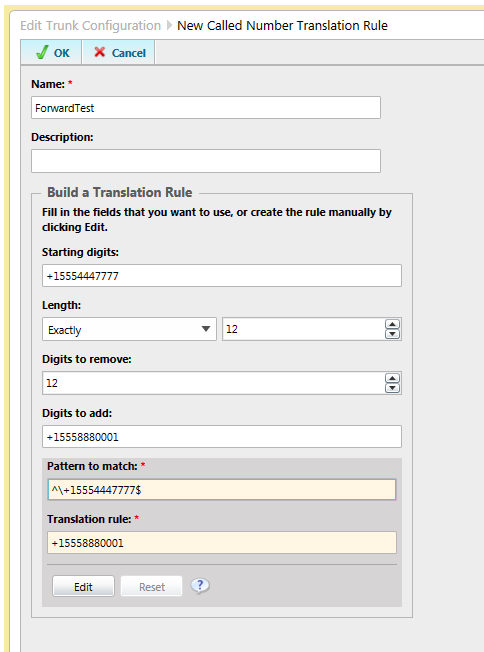
Scroll further down and create a new Called Number Translation Rule. Create a rule that will translate +15554447777 to +15558880001, as shown below:

Commit your changes, and voila! You have now configured administrator controlled call forwarding in Lync 2013.

A few notes:

  • Make sure the number you want to forward is not already assigned to a user, response group or other feature. If it is, this will not work because Lync will check to see if any Lync resource has the number assigned before attempting any other routing.
  • In most cases, SIP trunks don't support REFER, so any calls routed using this manner will use two channels, one for the inbound leg, and one for the outbound leg. The call will be hairpinned through your Lync servers. Be careful before doing this to a lot of phone numbers.
I'm not sure how often this sort of thing would come up, but its nice to know it will work.

Friday, July 19, 2013

Short Takes - A Look at the Previous Week's Lync Blog Posts

Here are some links to posts made this week by other Lync bloggers that you may find interesting:


Enjoy the weekend everyone!

Thursday, July 11, 2013

July 2013 Update for Lync 2013 Icon Weirdness

So, along with probably a bazillion other people, I installed the July 2013 client update for Lync 2013 (CU2) to see all the new awesomeness around Q & A, picture cut'n'paste and other assorted goodies as shown on several other blogs like Richard Brynteson from MasteringLync.com.

While the new features worked great, I couldn't help but notice that the new icons were either completely missing or showed incorrectly, as in the below screenshots:
Note the missing icon for "Q & A"

Note the weird icon on the right where the meeting icon should be
After removing and reinstalling both the Lync 2013 client update and even Lync 2013 itself, the situation never changed. After posting a question in the Lync MVP mailing list, Dave Howe from MS came back asking about the version numbers of MSO.DLL and MSORES.DLL.  Apparently, those DLLs contain the Lync 2013 icons, so if they're the incorrect version, then you'll see issues.  In my Office 2013 x32 installations, those DLLs were found in C:\Program Files (x86)\Common Files\microsoft shared\OFFICE15.

Keeping an eye on those files, I reinstalled the Lync 2013 CU2 update once again.  However, they never changed from their default value.  Going on what I heard from others, I went to Windows Update to install the latest updates for Office 2013.  Several were found on my first pass.  I noticed that MSORES.DLL seemed to be updated by KB2817489 to 15.0.4517.1003 , but MSO.DLL was untouched.  With that update, the wonky icon showed up correctly, but the icons for "Q & A" and "No Meeting IM" were still missing.

Re-running Windows Update again installed a few more updates, notably KB2817491. This updated MSO.DLL to 15.0.4517.1005, at which point all the icons showed up normally.


If you read the description for KB2817489, it says the update should fix the Q & A and ME icons (whatever that is). The description page for KB2817491 is currently not available, so I can't tell what it does. The patch is apparently for Office 2013 x64, but I was running x32, and it updated the x32 version of MSO.DLL.  There may be some documentation fixing to do.

So, if you install Lync 2013 CU2, make sure you run Windows Update not just once, but TWICE to ensure you get all the updates necessary for Lync 2013 to work properly.

What did I learn from all this? MSORES.DLL stores the icons for the main Lync page, while MSO.DLL stores other icons.  Also, not all Lync file updates come in one nice package, as you would hope.

On a final note, I have to say that I am not a fan of this process.  I understand that Lync 2013 is now part of Office 2013, but is it too much to ask that if an update is put out for Lync 2013, that update should include ALL the required DLL updates?  I shouldn't have to install multiple seemingly unrelated updates just to get a fully functional Lync 2013 client.  This took up a good half a day of troubleshooting that would have been better spent doing other things.

By the way, I want to give special thanks to Dave Howe from Microsoft. If it weren't for him asking about MSO/MSORES, it would have taken a lot longer to figure out the solution.

Monday, July 8, 2013

Errors After Installing Office Web App Server on Non-Standard Drive

I haven't come across anything noting this, but beware of installing Office Web App Server 2013 on anything other than the standard C:\Program Files\Microsoft Office Web Apps on Windows Server 2012.  I installed OWA on the D: drive to keep with a corporate policy for all installed applications. The installation itself went without a hitch, and I was even able to create a new Office Web App farm.  However, when I tried to run any other OWA Powershell command (like Get-OfficeWebAppFarm), I would get the following error:
Get-OfficeWebAppsFarm : The content type text/html; charset=utf-8 of the response message does not match the content type of the binding (application/soap+msbin1). If using a custom encoder, be sure that the IsContentTypeSupported method is implemented properly. The first 1024 bytes of the response were: '<!DOCTYPE html PUBLIC "-//W3C//DTD XHTML 1.0 Strict//EN" "http://www.w3.org/TR/xhtml1/DTD/xhtml1-strict.dtd">
<html xmlns="http://www.w3.org/1999/xhtml">
<head>
<title>IIS 8.0 Detailed Error - 500.19 - Internal Server Error</title>
<style type="text/css">
<!--
body{margin:0;font-size:.7em;font-family:Verdana,Arial,Helvetica,sans-serif;}
code{margin:0;color:#006600;font-size:1.1em;font-weight:bold;}
.config_source code{font-size:.8em;color:#000000;}
pre{margin:0;font-size:1.4em;word-wrap:break-word;}
ul,ol{margin:10px 0 10px 5px;}
ul.first,ol.first{margin-top:5px;}
fieldset{padding:0 15px 10px 15px;word-break:break-all;}
.summary-container fieldset{padding-bottom:5px;margin-top:4px;}
legend.no-expand-all{padding:2px 15px 4px 10px;margin:0 0 0 -12px;}
legend{color:#333333;;margin:4px 0 8px -12px;_margin-top:0px;
font-weight:bold;font-size:1em;}
a:link,a:visited{color:#007EFF;font-weight:bold;}
a:hover{text-decoration:none;}
h1{font-size:2.4em;margin:0;color:#FFF;}
h2{font-size:1.7em;margin:0'.
At line:1 char:1
+ Get-OfficeWebAppsFarm
+ ~~~~~~~~~~~~~~~~~~~~~
    + CategoryInfo          : NotSpecified: (:) [Get-OfficeWebAppsFarm], ProtocolException
    + FullyQualifiedErrorId : System.ServiceModel.ProtocolException,Microsoft.Office.Web.Apps.Administration.GetFarmCommand
Uninstalling Office Web App Server from the D: drive and reinstalling on the default path of C:\Program Files\Microsoft Office Web App fixed the issue.  Again, this was on Windows Server 2012.  No idea if the same thing happens on Windows Server 2008 R2.

Just an FYI for anyone looking for answers for this specific issue.

Tuesday, July 2, 2013

Renaming Lync Servers

No matter how well you discuss it with other stakeholders in advance, how many times you show it in design documents, and how many change requests you submit with it prominently displayed, you may find yourself having to rename Lync servers in a deployment.

I recently found myself in this unenviable position a few months after I built out a brand-spanking new Lync 2013 deployment for a customer. The server naming convention I proposed was accepted by all the important parties and was prominently displayed in design documents, presentations and change request orders.  Well into the deployment, an issue with the naming convention was brought up by someone important enough to force the server name change after the fact, but apparently not important enough to be included in the design process in the first place. Sigh...

At this stage, there were 3 Lync Server 2013 Enterprise Edition front-end servers, 2 edge servers, and a survivable branch server (SBS) all running Windows Server 2008 R2. Thankfully, they didn't have a problem with the pool names for the front-end and edge pools, so we didn't have to do a complete rip-and-replace, but that was minor consolation for the work ahead.

I managed to come up with a fairly streamlined process to do the renames, with minimal interruption to the users already piloting the deployment. The final result was a deployment with no errors relating to the name change.

I'm not saying there's not a faster way of doing this, by removing fewer components, but this process proved to work for me without issue.  If you've done the same thing by doing less, let me know in the comments.

Do each server one at a time, running through the complete process before starting the next one.

  1. Remove Lync server from topology
  2. Publish topology.
  3. Run Lync Server Deployment Wizard local setup on server to remove Lync components
  4. Uninstall SQL Server. Front-ends have LyncLocal and RTCLocal instances. Remove both, rebooting between instance removal.  Edge only has RTCLocal instance. 
  5. Remove SQL Server 2012 Management Objects (x64)
  6. Remove SQL Server 2012 Native Client (x64)
  7. Remove Microsoft System CLR Types for SQL Server 2012 (x64)
  8. Remove Microsoft Lync Server 2013, Front End Server
  9. Remove Microsoft Lync Server 2013, Core Components
  10. Delete C:\Program Files\Microsoft SQL Server
  11. Delete C:\Program Files\Microsoft Lync Server 2013
  12. Delete C:\CSData
  13. Rename server and restart
  14. Wait until AD replication completes with new server name.
  15. Open Topology Builder, add new server to existing pool and publish.
  16. Reinstall Lync components and all cumulative updates
  17. Generate new certificate with updated server name and assign to appropriate services using Lync Server Deployment Wizard.
  18. Restart all servers in pool at same time (only relevant for front-end servers in an Enterprise pool).


Monday, June 24, 2013

Location-Based Routing without Inbound Call Restrictions

The February 2013 Update for Lync Server 2013 (CU1) added location-based routing to the Lync Enterprise Voice featureset. As described on Technet and various other blogs, location-based routing was designed to function in countries where routing calls over the WAN is not allowed.

Countries like India apparently have rather strict telecom laws saying any calls that exit the country must exit via the PSTN.  For instance, imagine your company has a Lync deployment in India and Canada.  As I understand it, if a user sitting in India wanted to call a Canadian PSTN number, it couldn't save on international toll charges by routing the call to Canada via the corporate WAN and exit to the PSTN via the Canadian Lync deployment. The converse situation would also not be allowed.  Whether this is because India wants the international toll charge revenue or for monitoring purposes, I don't know.

Prior to Lync 2013 CU1, companies faced with these requirements would be OK when users never moved from their assigned location.  For instance, if a Canadian user never went to the India office, and the India users always stayed in India, they would never run afoul of the rules. If a Canadian user did travel to India, their Canadian voice policy would still apply (unless the administrator moved the user temporarily to the India Lync server).  Their calls would route over the WAN to the Canadian Lync server, which is not allowed by India telecom rules.

Location-based routing was obviously added to Lync to deal with the "India problem".  You can see this in the Technet documentation on how to setup location-based routing.  All the examples use India, and if you follow the documentation explicitly, you will have an India telecom compliant Lync deployment.  If our hypothetical Canadian user travels to the India office, their calls will use the India Lync deployment, rather than use the WAN for least cost routing.  Inbound calls to the Canadian user's Canadian phone number will go to voicemail, because letting him take the call via the WAN would run afoul of the India dial rules.

So, this got me thinking. What if we want to setup location-based routing, but not worry about whether or not inbound calls can route over the WAN?  I can think of many situations where location-based routing is desirable. Any place where you have lots of mobile people going to different offices can benefit from location-based routing, especially in environments where bandwidth back to the user's home pool is lacking.

Luckily, I'm working on a Lync 2013 deployment that has that exact scenario in mind. The company has many mobile users who travel to far-flung offices with poor WAN conditions.  I wanted to see if we could implement location-based routing for this company, but without the restrictions on inbound call routing imposed if you follow the Technet documentation to the letter.

The documentation has you setting up all your sites and subnets, and then running the following commands (as per http://technet.microsoft.com/en-us/library/jj994036.asp):

  1. New-CSVoiceRoutingPolicy to create the routing policies and the PSTN usages assigned to it
  2. Set-CSNetworkSite to enable location-based routing for the site via -EnableLocationBasedRouting:$TRUE, and to assign the previously created voice routing policy
  3. Set-CSTrunkConfiguration to assign network sites and enable routing restrictions on the PSTN trunk, using -EnableLocationRestriction:$TRUE.
  4. Set-CSVoicePolicy to enable location-based routing for the users assigned to that policy, using -PreventPSTNTollBypass:$TRUE

We setup location-based routing as per the documentation with only ONE key difference...we didn't enable location-based routing on the trunks as per the examples given.  When running Set-CSTrunkConfiguration, we left out the -EnableLocationRestriction:$TRUE setting.

Technet's documentation on this particular setting seems to indicate not setting -EnableLocationRestriction to $TRUE would make location-based routing not work. In actual fact, this is the setting that stops inbound PSTN calls from working while a user is at a site where call routing restrictions apply (like India).

The setting that I THOUGHT would have allowed inbound calls across the WAN to work was Set-CSVoicePolicy -PreventPSTNTollBypass:$FALSE.  This setting is actually the one that controls which users will get location-based routing applied to them.  Setting it to false disables location-based routing for the users of that voice policy, as indicated by the wording on the location-based routing setup page. It does not actually prevent PSTN calls from reaching users over the WAN, as the Technet documentation on the command indicates.

We've tested this setup and it works as we had hoped it would. When users go to remote sites, their outbound calls use the local PSTN egress point, but inbound calls to their PSTN phone number still routes to them properly.

So, in conclusion, if you want to enable location-based routing without inbound call restrictions, don't use Set-CSTrunkConfiguration -EnableLocationRestriction:$TRUE, or conversely, use Set-CSTrunkConfiguration -EnableLocationRestriction:$FALSE if you've already set it to $TRUE.