Wednesday, August 21, 2013

More Control Options in Lync Optimizer

Introduction

A few long-asked for features in the Lync Dialing Rule Optimizer are the ability to modify the rule naming convention used for dialplans, usages, routes etc and simplified routing.  I haven't done so in the past because I thought that allowing users full control over the naming convention would cause all kinds of issues with the Optimizer code.  A fair amount of the code assumes all the rules follow a certain naming convention for things like least-cost routing to work. For non-North American countries, I've long allowed for the addition of a rule suffix, but the main rule format stayed the same.

The "typical" Lync Dialing Rule Optimizer naming convention starts with a 2-character country code, followed by a 2-character state or province code (North America only), then the city/area name, the numeric area code of the city/area, and finally a suffix denoting the call type (local, mobile, premium, national etc).  So, for Toronto, Ontario, we would have NA-ON-Toronto-416-222-Local (or -National, -Premium etc).  London, UK would be UK-London-20-Local.

I've recently realized that the code only relies on the country name prefix and the call-type suffix for all the code to work properly (a rare bit of foresight coming from this non-programmer).  So, I've made some changes to the Optimizer UI to allow for some new user-controllable settings.

Changing Rule Names

First off, I've extended the Rule example preview that's been available for non-North America countries for some time.  Now for any country, you will see a live preview of what a rule will look like after you've selected any of the options above the example.

If you don't like the default rule naming convention as displayed in the Rule example, you can change it by clicking the checkbox beside Change Rulename Base, and entering your own rule format, as in the below examples:

You'll get real-time feedback on how your rules will look without having to actually generate the ruleset and look through the Powershell output. The Optimizer will still control the country prefix and the -Local, -National etc suffixes as per usual to ensure least-cost routing and other options will still work.

Force English Rulenames

If you're working with a ruleset for a country that doesn't use English for rulenames, you can now click the Force English Rulenames checkbox. This box only appears when you select a country that doesn't already use English for its rulenames. When selected, all rules and descriptions will use English instead of the local language. This replaces the feature that was previously available using a separate (seemingly hard to find) webpage.

Simple Rulesets

I've also added an option to create a simple ruleset that handles all calls instead of the default that breaks up local, national, international, mobile and service numbers into groups so administrators can easily assign different voice policies that limit the types of calls users can make.


For example, a "traditional" Optimizer ruleset for London, UK will create the following usages and routes:
UK-London-20-Local
UK-London-20-Mobile
UK-London-20-National
UK-London-20-International
UK-London-20-Premium
UK-London-20-Service

If a company has a lot of sites, the number of usages and routes grows quite quickly.  Selecting the "Simple Ruleset" option will create the following usage/route:
UK-London-20-AllCalls

The AllCalls rule simply hands every single call off to the next hop. Much less complicated, but there are trade-offs. Least-cost routing between sites is not possible since any call will match the AllCalls usage. Administrators can't limit the types of numbers users can auto-forward calls to (see this post for more information on the topic).

Also, don't attempt to add an AllCalls usage to a "traditional" Optimizer-generated voice policy that prevents certain classes of calls (ie international etc).  For example, assume a user is assigned to the voice policy NA-ON-Toronto-416555-Local, with usages formatted as below:
NA-ON-Toronto-416555-Local
NA-ON-Toronto-416555-Service

When a user dials a number, Lync will check for a match against all the routes in the usages assigned to the voice policy. So, if a user assigned to the Local policy tries to dial a long-distance or international number, Lync will check against the Local then Service usages for a match.  It won't find one, and the user will be denied the call.

The Lync administrator decides to add the UK-London-20-AllCalls usage to the bottom of the NA-ON-Toronto-416555-Local voice policy.
NA-ON-Toronto-416555-Local
NA-ON-Toronto-416555-Service
UK-London-20-AllCalls

Now when the user tries to dial a previously denied North American long-distance number,  the call will match against the UK-London-20-AllCalls usage and allow the call.  To add insult to injury, the call will route via London as an international call, and incur higher toll charges. 

So, the general rule is not to add AllCalls usages with voice policies that intend to limit calls to certain classes of numbers.  The Optimizer won't include AllCalls usages in least-cost routing calculations on "traditional" rulesets.  However, failover routing calculating and application is still available between rulesets that use the AllCalls option.

Conclusion

You can combine all these new features to create a truly customized ruleset for your deployment. So, you're able to create an English language simplified ruleset for Budapest, Hungary using a customized naming convention with just a few clicks.

These most recent UI and functionality changes should go a long way towards helping Lync administrators create rulesets that most benefit their deployment requirements.  Check out version 10.0 of the Lync Dialing Rule Optimizer at www.ucdialplans.com.

As usual, feedback is always appreciated. If there's anything else you'd like to see in the Optimizer, let me know in the comments.


Thursday, August 1, 2013

Forwarding Calls Using Inter-Trunk Routing

A question came up on the Lync Technet forums about how to make Lync 2013 take an inbound PSTN call to a specific Lync number and turn around and send it back out to the PSTN to another number.  Previous to Lync 2013, this wasn't possible unless you setup a response group to take the inbound call and forward it to a different number.

Lync 2013 introduced inter-trunk routing, which allows administrators to route incoming calls to another phone system. While its main intent is to facilitate connections between dissimilar phone systems, it can also be used to forward inbound calls to another external phone number using the same trunk.

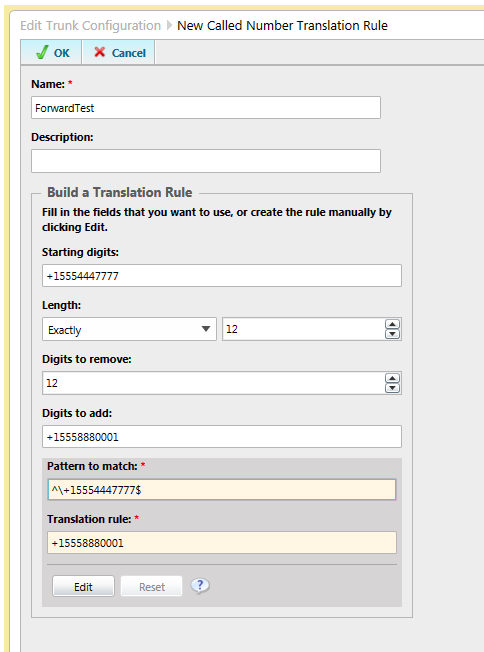
Let's assume you have a SIP trunk connected to Lync Server 2013.  You have a phone number associated with Lync and your SIP trunk (+15554447777) that you want to forward to a completely different number not hosted on your SIP trunk/Lync (say +15558880001).  Also, assume that you've already setup dialing rules to normalize everything to E.164 standards.

First, go to your global voice policy and create a PSTN usage.

Create a new route that contains only +15554447777, and assign the route to your SIP trunk.

Now, go over to the Trunk Configuration page and edit your SIP trunk. Add the PSTN usage you created above to the Associated PSTN Usages dialog box:

Scroll further down and create a new Called Number Translation Rule. Create a rule that will translate +15554447777 to +15558880001, as shown below:

Commit your changes, and voila! You have now configured administrator controlled call forwarding in Lync 2013.

A few notes:

  • Make sure the number you want to forward is not already assigned to a user, response group or other feature. If it is, this will not work because Lync will check to see if any Lync resource has the number assigned before attempting any other routing.
  • In most cases, SIP trunks don't support REFER, so any calls routed using this manner will use two channels, one for the inbound leg, and one for the outbound leg. The call will be hairpinned through your Lync servers. Be careful before doing this to a lot of phone numbers.
I'm not sure how often this sort of thing would come up, but its nice to know it will work.

Friday, July 19, 2013

Short Takes - A Look at the Previous Week's Lync Blog Posts

Here are some links to posts made this week by other Lync bloggers that you may find interesting:


Enjoy the weekend everyone!

Thursday, July 11, 2013

July 2013 Update for Lync 2013 Icon Weirdness

So, along with probably a bazillion other people, I installed the July 2013 client update for Lync 2013 (CU2) to see all the new awesomeness around Q & A, picture cut'n'paste and other assorted goodies as shown on several other blogs like Richard Brynteson from MasteringLync.com.

While the new features worked great, I couldn't help but notice that the new icons were either completely missing or showed incorrectly, as in the below screenshots:
Note the missing icon for "Q & A"

Note the weird icon on the right where the meeting icon should be
After removing and reinstalling both the Lync 2013 client update and even Lync 2013 itself, the situation never changed. After posting a question in the Lync MVP mailing list, Dave Howe from MS came back asking about the version numbers of MSO.DLL and MSORES.DLL.  Apparently, those DLLs contain the Lync 2013 icons, so if they're the incorrect version, then you'll see issues.  In my Office 2013 x32 installations, those DLLs were found in C:\Program Files (x86)\Common Files\microsoft shared\OFFICE15.

Keeping an eye on those files, I reinstalled the Lync 2013 CU2 update once again.  However, they never changed from their default value.  Going on what I heard from others, I went to Windows Update to install the latest updates for Office 2013.  Several were found on my first pass.  I noticed that MSORES.DLL seemed to be updated by KB2817489 to 15.0.4517.1003 , but MSO.DLL was untouched.  With that update, the wonky icon showed up correctly, but the icons for "Q & A" and "No Meeting IM" were still missing.

Re-running Windows Update again installed a few more updates, notably KB2817491. This updated MSO.DLL to 15.0.4517.1005, at which point all the icons showed up normally.


If you read the description for KB2817489, it says the update should fix the Q & A and ME icons (whatever that is). The description page for KB2817491 is currently not available, so I can't tell what it does. The patch is apparently for Office 2013 x64, but I was running x32, and it updated the x32 version of MSO.DLL.  There may be some documentation fixing to do.

So, if you install Lync 2013 CU2, make sure you run Windows Update not just once, but TWICE to ensure you get all the updates necessary for Lync 2013 to work properly.

What did I learn from all this? MSORES.DLL stores the icons for the main Lync page, while MSO.DLL stores other icons.  Also, not all Lync file updates come in one nice package, as you would hope.

On a final note, I have to say that I am not a fan of this process.  I understand that Lync 2013 is now part of Office 2013, but is it too much to ask that if an update is put out for Lync 2013, that update should include ALL the required DLL updates?  I shouldn't have to install multiple seemingly unrelated updates just to get a fully functional Lync 2013 client.  This took up a good half a day of troubleshooting that would have been better spent doing other things.

By the way, I want to give special thanks to Dave Howe from Microsoft. If it weren't for him asking about MSO/MSORES, it would have taken a lot longer to figure out the solution.

Monday, July 8, 2013

Errors After Installing Office Web App Server on Non-Standard Drive

I haven't come across anything noting this, but beware of installing Office Web App Server 2013 on anything other than the standard C:\Program Files\Microsoft Office Web Apps on Windows Server 2012.  I installed OWA on the D: drive to keep with a corporate policy for all installed applications. The installation itself went without a hitch, and I was even able to create a new Office Web App farm.  However, when I tried to run any other OWA Powershell command (like Get-OfficeWebAppFarm), I would get the following error:
Get-OfficeWebAppsFarm : The content type text/html; charset=utf-8 of the response message does not match the content type of the binding (application/soap+msbin1). If using a custom encoder, be sure that the IsContentTypeSupported method is implemented properly. The first 1024 bytes of the response were: '<!DOCTYPE html PUBLIC "-//W3C//DTD XHTML 1.0 Strict//EN" "http://www.w3.org/TR/xhtml1/DTD/xhtml1-strict.dtd">
<html xmlns="http://www.w3.org/1999/xhtml">
<head>
<title>IIS 8.0 Detailed Error - 500.19 - Internal Server Error</title>
<style type="text/css">
<!--
body{margin:0;font-size:.7em;font-family:Verdana,Arial,Helvetica,sans-serif;}
code{margin:0;color:#006600;font-size:1.1em;font-weight:bold;}
.config_source code{font-size:.8em;color:#000000;}
pre{margin:0;font-size:1.4em;word-wrap:break-word;}
ul,ol{margin:10px 0 10px 5px;}
ul.first,ol.first{margin-top:5px;}
fieldset{padding:0 15px 10px 15px;word-break:break-all;}
.summary-container fieldset{padding-bottom:5px;margin-top:4px;}
legend.no-expand-all{padding:2px 15px 4px 10px;margin:0 0 0 -12px;}
legend{color:#333333;;margin:4px 0 8px -12px;_margin-top:0px;
font-weight:bold;font-size:1em;}
a:link,a:visited{color:#007EFF;font-weight:bold;}
a:hover{text-decoration:none;}
h1{font-size:2.4em;margin:0;color:#FFF;}
h2{font-size:1.7em;margin:0'.
At line:1 char:1
+ Get-OfficeWebAppsFarm
+ ~~~~~~~~~~~~~~~~~~~~~
    + CategoryInfo          : NotSpecified: (:) [Get-OfficeWebAppsFarm], ProtocolException
    + FullyQualifiedErrorId : System.ServiceModel.ProtocolException,Microsoft.Office.Web.Apps.Administration.GetFarmCommand
Uninstalling Office Web App Server from the D: drive and reinstalling on the default path of C:\Program Files\Microsoft Office Web App fixed the issue.  Again, this was on Windows Server 2012.  No idea if the same thing happens on Windows Server 2008 R2.

Just an FYI for anyone looking for answers for this specific issue.

Tuesday, July 2, 2013

Renaming Lync Servers

No matter how well you discuss it with other stakeholders in advance, how many times you show it in design documents, and how many change requests you submit with it prominently displayed, you may find yourself having to rename Lync servers in a deployment.

I recently found myself in this unenviable position a few months after I built out a brand-spanking new Lync 2013 deployment for a customer. The server naming convention I proposed was accepted by all the important parties and was prominently displayed in design documents, presentations and change request orders.  Well into the deployment, an issue with the naming convention was brought up by someone important enough to force the server name change after the fact, but apparently not important enough to be included in the design process in the first place. Sigh...

At this stage, there were 3 Lync Server 2013 Enterprise Edition front-end servers, 2 edge servers, and a survivable branch server (SBS) all running Windows Server 2008 R2. Thankfully, they didn't have a problem with the pool names for the front-end and edge pools, so we didn't have to do a complete rip-and-replace, but that was minor consolation for the work ahead.

I managed to come up with a fairly streamlined process to do the renames, with minimal interruption to the users already piloting the deployment. The final result was a deployment with no errors relating to the name change.

I'm not saying there's not a faster way of doing this, by removing fewer components, but this process proved to work for me without issue.  If you've done the same thing by doing less, let me know in the comments.

Do each server one at a time, running through the complete process before starting the next one.

  1. Remove Lync server from topology
  2. Publish topology.
  3. Run Lync Server Deployment Wizard local setup on server to remove Lync components
  4. Uninstall SQL Server. Front-ends have LyncLocal and RTCLocal instances. Remove both, rebooting between instance removal.  Edge only has RTCLocal instance. 
  5. Remove SQL Server 2012 Management Objects (x64)
  6. Remove SQL Server 2012 Native Client (x64)
  7. Remove Microsoft System CLR Types for SQL Server 2012 (x64)
  8. Remove Microsoft Lync Server 2013, Front End Server
  9. Remove Microsoft Lync Server 2013, Core Components
  10. Delete C:\Program Files\Microsoft SQL Server
  11. Delete C:\Program Files\Microsoft Lync Server 2013
  12. Delete C:\CSData
  13. Rename server and restart
  14. Wait until AD replication completes with new server name.
  15. Open Topology Builder, add new server to existing pool and publish.
  16. Reinstall Lync components and all cumulative updates
  17. Generate new certificate with updated server name and assign to appropriate services using Lync Server Deployment Wizard.
  18. Restart all servers in pool at same time (only relevant for front-end servers in an Enterprise pool).


Monday, June 24, 2013

Location-Based Routing without Inbound Call Restrictions

The February 2013 Update for Lync Server 2013 (CU1) added location-based routing to the Lync Enterprise Voice featureset. As described on Technet and various other blogs, location-based routing was designed to function in countries where routing calls over the WAN is not allowed.

Countries like India apparently have rather strict telecom laws saying any calls that exit the country must exit via the PSTN.  For instance, imagine your company has a Lync deployment in India and Canada.  As I understand it, if a user sitting in India wanted to call a Canadian PSTN number, it couldn't save on international toll charges by routing the call to Canada via the corporate WAN and exit to the PSTN via the Canadian Lync deployment. The converse situation would also not be allowed.  Whether this is because India wants the international toll charge revenue or for monitoring purposes, I don't know.

Prior to Lync 2013 CU1, companies faced with these requirements would be OK when users never moved from their assigned location.  For instance, if a Canadian user never went to the India office, and the India users always stayed in India, they would never run afoul of the rules. If a Canadian user did travel to India, their Canadian voice policy would still apply (unless the administrator moved the user temporarily to the India Lync server).  Their calls would route over the WAN to the Canadian Lync server, which is not allowed by India telecom rules.

Location-based routing was obviously added to Lync to deal with the "India problem".  You can see this in the Technet documentation on how to setup location-based routing.  All the examples use India, and if you follow the documentation explicitly, you will have an India telecom compliant Lync deployment.  If our hypothetical Canadian user travels to the India office, their calls will use the India Lync deployment, rather than use the WAN for least cost routing.  Inbound calls to the Canadian user's Canadian phone number will go to voicemail, because letting him take the call via the WAN would run afoul of the India dial rules.

So, this got me thinking. What if we want to setup location-based routing, but not worry about whether or not inbound calls can route over the WAN?  I can think of many situations where location-based routing is desirable. Any place where you have lots of mobile people going to different offices can benefit from location-based routing, especially in environments where bandwidth back to the user's home pool is lacking.

Luckily, I'm working on a Lync 2013 deployment that has that exact scenario in mind. The company has many mobile users who travel to far-flung offices with poor WAN conditions.  I wanted to see if we could implement location-based routing for this company, but without the restrictions on inbound call routing imposed if you follow the Technet documentation to the letter.

The documentation has you setting up all your sites and subnets, and then running the following commands (as per http://technet.microsoft.com/en-us/library/jj994036.asp):

  1. New-CSVoiceRoutingPolicy to create the routing policies and the PSTN usages assigned to it
  2. Set-CSNetworkSite to enable location-based routing for the site via -EnableLocationBasedRouting:$TRUE, and to assign the previously created voice routing policy
  3. Set-CSTrunkConfiguration to assign network sites and enable routing restrictions on the PSTN trunk, using -EnableLocationRestriction:$TRUE.
  4. Set-CSVoicePolicy to enable location-based routing for the users assigned to that policy, using -PreventPSTNTollBypass:$TRUE

We setup location-based routing as per the documentation with only ONE key difference...we didn't enable location-based routing on the trunks as per the examples given.  When running Set-CSTrunkConfiguration, we left out the -EnableLocationRestriction:$TRUE setting.

Technet's documentation on this particular setting seems to indicate not setting -EnableLocationRestriction to $TRUE would make location-based routing not work. In actual fact, this is the setting that stops inbound PSTN calls from working while a user is at a site where call routing restrictions apply (like India).

The setting that I THOUGHT would have allowed inbound calls across the WAN to work was Set-CSVoicePolicy -PreventPSTNTollBypass:$FALSE.  This setting is actually the one that controls which users will get location-based routing applied to them.  Setting it to false disables location-based routing for the users of that voice policy, as indicated by the wording on the location-based routing setup page. It does not actually prevent PSTN calls from reaching users over the WAN, as the Technet documentation on the command indicates.

We've tested this setup and it works as we had hoped it would. When users go to remote sites, their outbound calls use the local PSTN egress point, but inbound calls to their PSTN phone number still routes to them properly.

So, in conclusion, if you want to enable location-based routing without inbound call restrictions, don't use Set-CSTrunkConfiguration -EnableLocationRestriction:$TRUE, or conversely, use Set-CSTrunkConfiguration -EnableLocationRestriction:$FALSE if you've already set it to $TRUE.


Friday, June 14, 2013

Fixing Call Issues in a Mitel 3300 - Lync 2013 Deployment

We recently deployed Lync Server 2013 Enterprise Voice for a customer who at the same time replaced their old Mitel PBX with a newer Mitel 3300. The customer wasn't ready to make a full commitment to Lync for voice traffic, but probably 80% of the customer's users are using Lync exclusively for voice.

The Lync infrastructure was connected to the PSTN via the Mitel 3300 PBX using direct SIP.  While things initially seemed to be fine, we were getting numerous reports of sporadic failed calls throughout each day.

Digging through the monitoring server reports (deploying monitoring server reports should be considered ESSENTIAL for any Lync Enterprise Voice deployment), we could see a clear trend for the call failures: Looking at the Failure Distribution Report, we could see the top failed call reason was Gateway side Media negotiation failed.

Clicking on the sessions number hyperlink brought us to the list of calls that failed due to that cause.  Selecting one shows the session detail report for that call:

At the bottom is the Diagnostic Report.  Clicking the Detail link on the server side finally shows the exact reason for the call failure:
10010; source="LyncFE.contoso.com"; reason="Gateway side Media negotiation failed"; component="MediationServer"; ValidationError="SDP Exchange already failed before SetAnswer: Session c line = 0.0.0.0 or ::, call hold not allowed for initial INVITE offer"; GatewayFqdn="10.1.1.2; trunk=NA-OH-Dayton-Mitel"
I did a search through my normal channels and didn't come up with much.  I saw a few references to clients who set the Lync client audio port range to 3, rather than the recommended 20-40 which caused their particular issue, but we were already using 40 as a client port range.

It seemed as though the issue was coming from the Mitel side.  I tried a few things like setting the trunk's RTCPActiveCalls and RTCPCallsonHold values to FALSE on the Lync side, but that had no effect.

We tried to contact the Mitel partner who put in the Mitel system, but they were of very little help.  I asked if I could poke around the Mitel web console to look for a potential fix. Surprisingly, the client said "Sure".  Having never seen a Mitel before, I thought that things were about to go very wrong, or at least we wouldn't get any closer to a solution.

Since the error was related to SDP, we focussed on the SDP Options tab under SIP Peer Profile on the Mitel.  The most promising option was Avoid Signalling Hold to the Peer.  It was promising because the error message from the Lync monitoring reports mentioned both SDP and hold, so.......we set it to Yes, and at the same time we set Enable Mitel Proprietary SDP to No.  Everything else we left alone.

Almost immediately, our problems came to an end. Calls to numbers that would fail every 2nd or 3rd attempt suddenly worked without error every single time. Another side benefit was that we were now getting music on hold when transferring to Mitel call queues, where we weren't before.

I was amazed that we had brought up the issues around both music on hold and the failed calls on numerous occasions, and the Mitel partner could not find a solution, while someone with zero experience with Mitel was able to find a solution in under 10 minutes of poking around.

I was feeling pretty good about fixing that issue, so I tried to solve the other remaining issue where outbound calls would only show the main office number rather than the individual Lync user's DID. However, my beginners luck ran out and I couldn't find a solution.

So, if you're having similar issues with a Mitel - Lync deployment, hopefully this will steer you in the right direction.

Tuesday, June 4, 2013

Inter-trunk Routing in Lync 2013

Introduction - What is Inter-trunk Routing?

Inter-trunk routing is a new feature in Lync 2013 that allows Lync Server to be the central call processor for a multi-PBX deployment.  In previous versions, Lync was only capable of being the final destination for phone calls.  If an inbound phone call couldn't be matched to a Lync user, the call would fail.  There was no way to have Lync forward calls on to another PBX, which limited the configuration options available to administrators.

Inter-trunk routing gives Lync administrators the ability to take calls in from a variety of sources and forward them on to other non-Lync destinations if there isn't a matching Lync user with the target phone number. 

The Problem

Recently, I had to deploy inter-trunk routing for a Lync deployment that had calls coming in from a variety of sources to a centralized Lync Server 2013 Enterprise Edition deployment:
  • a Lync-certified SIP trunk
  • a Canada-based T1 line connected to a PSTN gateway
  • two US-based Mitel PBXs. 
The inter-trunk routing requirements were very specific: forward four phone numbers entering Lync from the SIP trunk to one of the US-based PBXs.  The four phone numbers were +1 (289) 555-3926, +1 (289) 555-6733, +1 (289) 555-6734 and +1 (289) 555-6780.

The Solution

Having never done Lync inter-trunk routing, I turned to the trusty Internet for answers.  I found lots of information on WHAT Lync inter-trunk routing was all about, but almost nothing on exactly HOW to configure inter-trunk routing in Lync.  I saw references to assigning PSTN usages to trunks, and saw the place in the Lync Control Panel to add it, but nothing but vague allusions to the process of actually implementing it.

UPDATE 10-June-2013: Richard Brynteson posted a more knowledgable deep-dive into inter-trunk routing mere days after I posted this. I made a slight adjustment to my process based on what I read in his blog, so its definitely worth reading.

As usual, when I come across such a situation, I assume that it must be so simple to configure that it didn't occur to anyone to actually document the HOW.  I then assume I must be a complete idiot for not knowing something so plainly obvious to every other Lync administrator on the planet. So, after much flailing around, I figured out a solution that works using inter-trunk routing.

Since I wanted to route only four specific phone numbers between trunks, I needed to make sure that I enabled inter-trunk routing for those numbers and no others.  If I allowed inter-trunk routing for too wide a range of phone numbers, we could get into a situation where calls could enter Lync, pass onto the target PBX and route back into Lync, causing a call loop.  Rather than leave it to the target PBX to ensure a call loop doesn't happen, I figured it best to ensure Lync only pass the specific numbers to the PBX.

I started by editing the site-level voice policy attached to the Lync site where the incoming SIP trunk calls came into Lync.  I created a dedicated PSTN usage/route combination for those four numbers.  The PSTN usage was called NA-ON-Cooksville-289555-MitelForward to keep with the naming convention used by the Lync Dialing Rule Optimizer.  The route was called NA-ON-Cooksville-289555-MitelForward with a route pattern of ^\+1289555(3926|67(33|34|80))$ pointing to the PBX at 1.1.1.1. 

The PSTN usage was placed at the very top of each voice policy's PSTN usage list to ensure that any Lync user that tries to dial those numbers will forward the calls to the desired PBX. For good measure, I also added the PSTN usage to the Global voice policy, although I'm not sure this is necessary.

Next, I assigned the new PSTN usage to the incoming SIP trunk under Trunk Configuration.  If the trunk doesn't exist, add it as a new pool trunk.  I then added a trunk for the PBX and added trunk translation rules to strip the number down to 5 digits, which is what the target PBX is expecting.

Once done, I committed the changes and waited a few minutes for the changes to bake to a nice golden brown.

The moment of truth came when I was able to call one of those four numbers and listen as Lync seamlessly passed the calls onto the Mitel PBX.  Great success!

Conclusion

I'd like to say it was my deep, Yoda-like knowledge of how call routing works in Lync that allowed me to think through the process of determining how inter-trunk routing works. Unfortunately, the truth is that I tried random combinations of things until I stumbled blindly onto the solution.  There's a reason why I chose that picture of the Hoff looking vacant and stunned at the same time as my avatar....it's how I look and feel much of the time.

To summarize the process:
  1. Create a PSTN usage/route combination that is specific to the phone numbers required to be forwarded to the PBX.
  2. Place the PSTN usage at the top of all voice policies to ensure that both inbound calls from the PSTN and calls made by internal Lync users are routed to the proper destination.
  3. Assign the PSTN usage to the incoming trunk.
When complete, the whole call process should function as follows:
  1. Inbound call comes into Lync via SIP trunk.
  2. Lync normalizes the number into an E.164 phone number
  3. Lync does a reverse number lookup to check for a Lync user with the same number
  4. If no match in Lync, then it looks for a matching usage/route assigned to a trunk
  5. When found, applies any outbound normalization rules and sends the call to the next hop
For a more detailed description on how the call flow will proceed, check out the Mastering Lync blog.  Richard Brynteson did a series on the nitty gritty details behind dialing behaviours in Lync. His post on Inter-trunk dialing is a deep-dive into the details that I don't get into here.

If there's anyone else out there trying to figure out how to implement Lync inter-trunk routing, I hope this helps figure things out.  As always, if you have any questions or can correct any misunderstanding I might have on the process, just leave a comment.

Wednesday, May 8, 2013

Viewing Extensions in the Lync Client

In companies that use extensions off the main number, I’ve always recommended they format their numbers using the main office number for the “base” and followed by the extension (ie. tel:+14165551111;ext=222 for North America, or tel:+4420555111;ext=222 for elsewhere).  In Active Directory, I’ve recommended they use the same type of format (ie. +1.416.555.1111 X222), and use the Company_Phone_Number_Normalization_Rules.txt to enforce the same formatting.

Background

For those unfamiliar with how Lync displays phone numbers, the Lync client will only display numbers it can parse from Active Directory.  It doesn't show the actual TelURI defined in the Lync Control panel, which is a good thing, because there are often additional settings applied there that administrators don't want to have appear in the address list.  The Company_Phone_Number_Normalization_Rules.txt file is helpful in re-formatting phone numbers in AD to the E.164 format we like to see in Lync.  For a good overview of the Company_Phone_Number_Normalization_Rules.txt, see Jeff Schertz's blog entry on the topic.

The Problem

I've found that when using the Lync 2010 client, North American phone numbers would always display with the typical North American formatting properly along with the extension when dialed, (ie. +1 (416) 555-1111 X222).  However, when applying similar rules to international numbers, the extension would never display.  It would show +4420555111 instead of +4420555111 X222.  The number would be dialed properly, but it would be confusing to the user, because the extension wouldn't appear.

Fast forward to Lync 2013 client, and the situation appeared even worse.  Even North American phone numbers with extensions wouldn't appear properly when dialled.  I assumed this was a client bug that was getting worse with each client revision.

The Solution...Sort of

Fellow Lync MVP Tom Pacyk of ConfusedAmused.com brought to my attention a little known (well, little known by me) feature added with the October 2012 update for the Lync 2010 client.  In short, the client update finally fixed the bug for international extensions, but with a catch....you had to first add a new client policy entry to your Lync client policy.  If only the global client policy is being used, the commands are:
$x = New-CsClientPolicyEntry -Name "ShowExtensionInFormattedDisplayString" -Value "True"
$y = Get-CsClientPolicy -Identity Global
$y.PolicyEntry.Add($x)
Set-CsClientPolicy -Instance $y

Since this policy setting was a part of the Lync 2010 client updates, it would be very easily missed by someone whose focus has changed to Lync 2013.  I can only assume the same settings are required in a pure Lync 2013 environment, although there is very little information on the topic.

If you're running Lync Server 2010, it appears as though you need at least the October 2012 Lync 2010 server updates for this to work.  I tried to apply this client policy entry to a client's deployment whose got Lync 2010 and 2013 in parallel, but the Lync 2010 environment is a bit out of date.  The policy entry showed up properly when I ran the following:
$y = Get-CsClientPolicy -Identity Global
$y.PolicyEntry
...but neither my Lync 2010 or 2013 clients would show extensions properly.  Applying the policy entry to a 2010/2013 server mix where the 2010 environment was up-to-date worked fine...at least for 2010 clients...mostly.

So, make sure your Lync 2010 infrastructure is up-to-date before attempting to apply this setting.

What's Still Not Working

I setup a few test users with extensions off a fictitious Toronto, Canada and London, UK main office number.  The Toronto user's office number in AD was set to +1.416.555.1111 X111, and the London user's number in AD was set to +44.20.444.2222 X999.  Both users were setup in Lync with their TelURI properly defined as tel:+14165551111;ext=111 and tel:+44204442222;ext=999 respectively.

A Company_Phone_Number_Normalization_Rules.txt file was placed in the ABFiles folder on the shared folder for the Lync server pool with the following rule to ensure Lync would be able to parse phone numbers  with extensions in Active Directory properly:
\+(\d{6,14})\D+(\d+)
+$1;ext=$2

When testing with the Lync 2010 client, North American numbers showed up properly in both the list view and the dialing view, as shown below:


However, international numbers did show numbers a bit differently between the views, using the ;ext= from the TelURI instead of the X:


Interestingly enough, the Lync 2013 client doesn't seem to fully honour the extension setting for either North American or international numbers.  The number shows up properly when hovering over the phone icon, but only shows the main number when dialing:

North America

United Kingdom

Needless to say, this can be very confusing to the average user.

This appears to be a bug introduced with the Lync 2013 client.  I've brought this up with the Lync product managers, and we should see a future patch that will address the issue for Lync 2013 clients.

UPDATE (10-July-2013): The July 2013 Update for Lync 2013 addresses the extension presentation for North American numbers, as shown below.

However, non-North American numbers with extensions still don't show up properly.  I've been told this should be in a separate fix coming later.

UPDATE (16-June-2014):  I didn't notice but at some point in the past year, a patch seemed to mostly fix non-North America number presentation during dialing.  The number shows the extension as part of the TelURI, but it really should show the display number. At least its consistent with how the Lync 2010 client formats things.